BOOK 21/30Customers & promotions
Customer page look
How to give the customer pages (member home, booking, bottle keep, collecting points) the shop's own brand: theme, name, logo, cover picture, colours, corners and font, with a live preview.
Opening the settings
Open the “Customer page look” tab
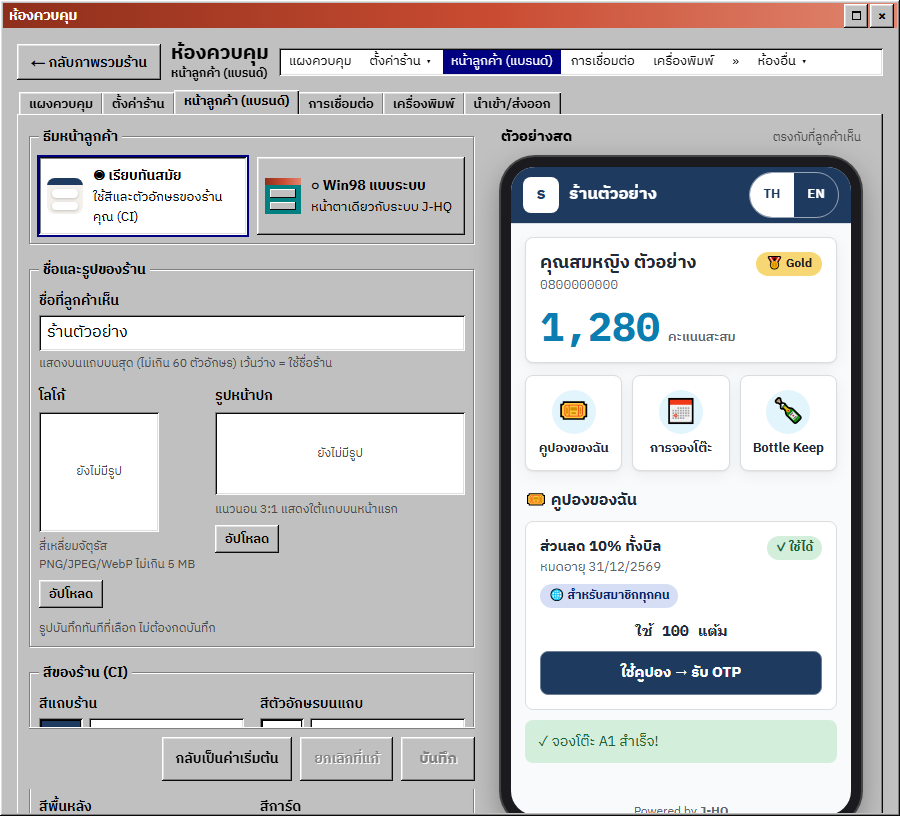
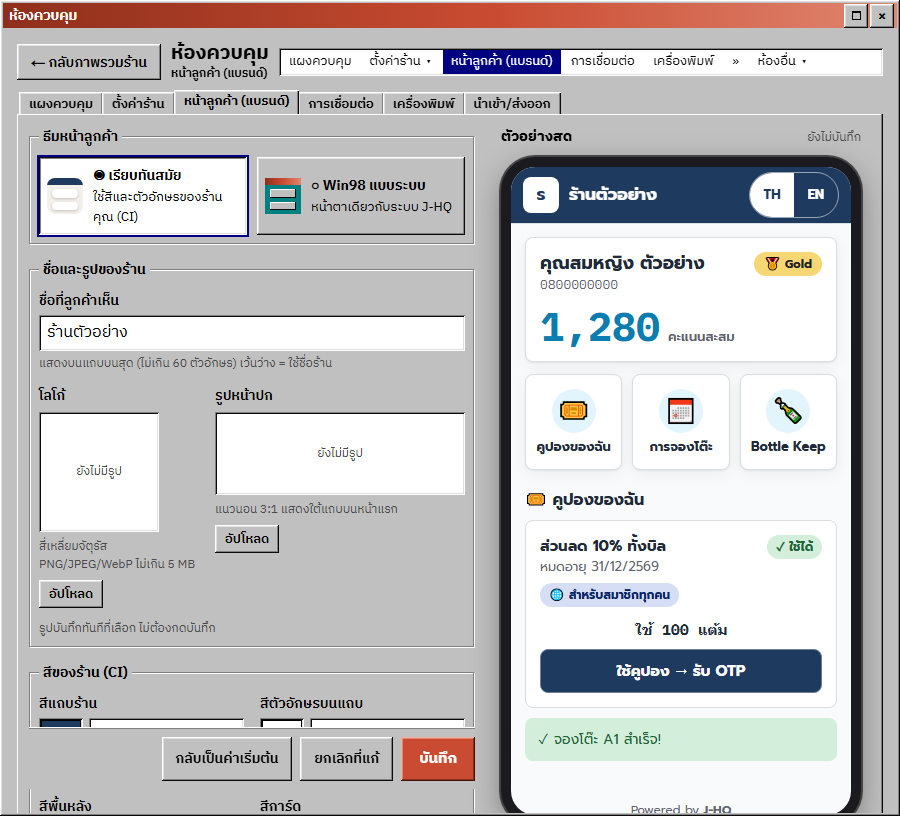
Control Room › “Customer page look”. What you set here applies to every customer page: the member home, log-in, table booking, bottle keep, collecting points and the privacy page. Every plan has it, but saving needs permission to change shop settings (otherwise “This role can't change shop settings”).
Beside it is a “Live preview” of the real customer page (top bar, cover, member card, tiles, a coupon). Its label reads “Not saved yet” or “What diners see now”. On phones, press “See the customer page preview ↓” to scroll to it.
Open full size
Changing the look
Choose the theme
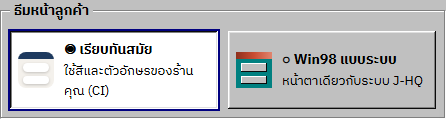
“Customer page theme” has two options: “Clean modern”, your shop's own colours and font (CI), which is the default; and “Win98 system look”, the same look as the J-HQ system.
With Win98 the shop colours aren't used; they apply when you switch back to the modern theme.
Open full size Name, logo and cover picture
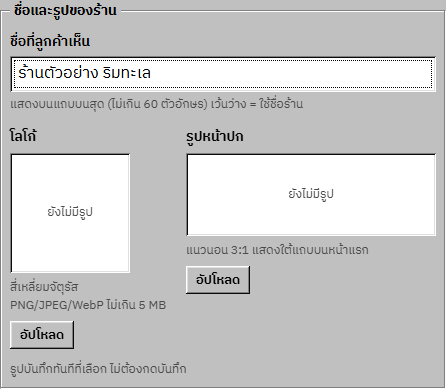
“Name diners see” takes up to 60 characters; leave it empty to use the shop name. The “Logo” is square and the “Cover picture” is landscape 3:1, shown under the bar on the home page. Both take PNG, JPEG or WebP up to 5 MB; use “Upload”, “Replace” or “Remove”.
Pictures save as soon as you pick them, with no need to press Save. They are resized for you and count toward the plan's storage (removing one frees the space).
Open full size Shop colours (CI)
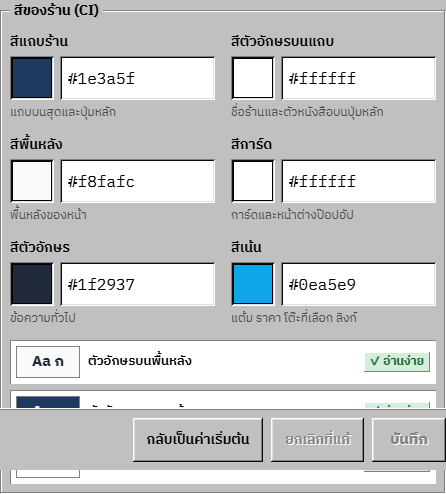
Six colours: “Bar colour” (top bar and main buttons), “Text on the bar” (shop name and main-button text), “Background” (page background), “Card colour” (cards and pop-ups), “Text colour” (body text) and “Accent” (points, prices, the picked table, links).
Type a colour as #rrggbb or pick it from the colour picker.
Open full size Check readability
The “Readability” box checks three pairs: “Text on the background”, “Text on the bar” and “Text on cards”. Each needs a contrast of at least 4.5:1.
A pair that passes shows “✓ Readable”; one that fails shows its ratio (e.g. ✕ 3.1:1) with a “Use suggested” button.
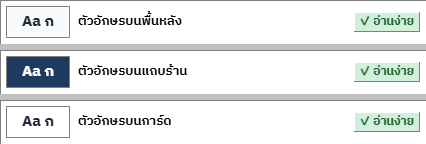
Open full size Corners and font
“Card and button corners”: Square · Soft (default) · Round.
“Font”: IBM Plex Sans Thai (default) · Sarabun · Noto Sans Thai · Prompt.
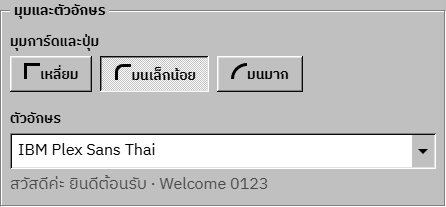
Open full size
Saving
Save, undo changes, or reset to default
Press “Save” and you see “Saved. Diners see the new look right away.” With nothing changed the buttons say “Nothing changed yet”. “Undo changes” throws away edits you haven't saved.
“Reset to default” asks first; press “Reset” and the theme, colours, name, logo and cover go back to the defaults, and the uploaded pictures are deleted.
Open full size
Common points of confusion
Hard-to-read colours can't be saved
If a pair is below 4.5:1, nothing is saved and a “These colours are hard to read” window shows the current colour → the suggested one, with a “Use #…” button. Press it, then save again.
Pictures save at once, not with the Save button
Uploading, replacing or removing the logo or cover takes effect as soon as you pick it, whatever you do with “Save” or “Undo changes”.
Reset deletes the uploaded pictures
“Reset to default” doesn't only bring back the colours: it also deletes the uploaded logo and cover. To change only the colours, edit them and save instead.
Only PNG, JPEG and WebP
SVG and GIF files, and anything over 5 MB, are refused (“Only PNG, JPEG or WebP images” / “The file is over 5 MB”).
A read-only shop can't change this page
After the trial ends without a plan, Save, Reset and the picture buttons are disabled until a plan is paid — see the “Plan, trial & billing” Book.