BOOK 02/30Getting started
Getting around the Office
How to get around the back office (Office): open Rooms from the shop Overview, read the “Today at the shop” window, use a Room's menu bar, find any function with Ctrl+K, and use the Menu button at the bottom left.
The shop Overview
The Overview and the welcome window
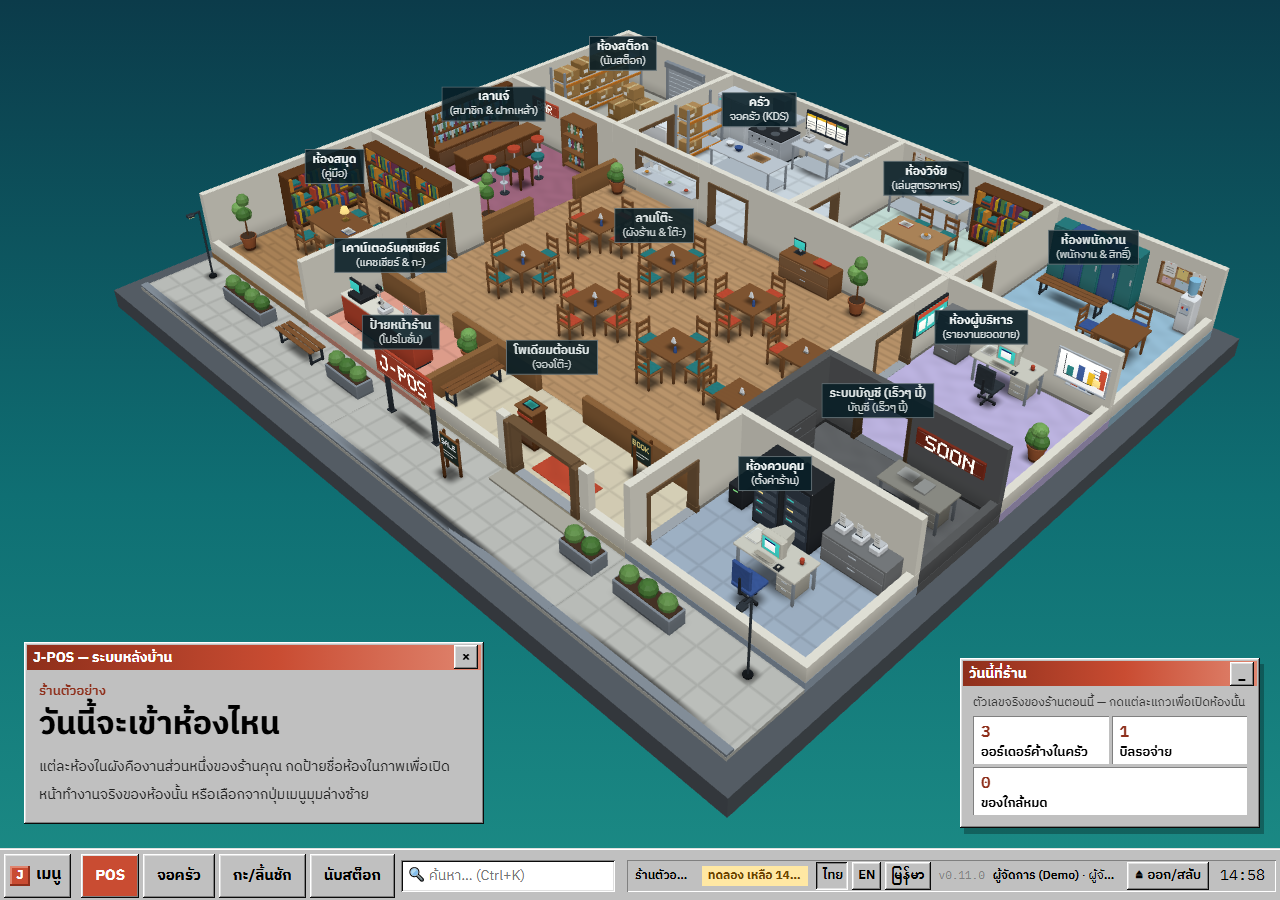
The Office opens on the shop plan with every Room labelled (Dining Floor, Host Stand, Signboard, Cashier Counter, Kitchen, Recipe Lab, Stock Room, Lounge, Staff Room, Manager's Office, Control Room and Library). Click a Room's label to open its real working screen.
The “J-POS — Back Office” window greets you with “Which Room today?” (or an announcement from the J-HQ team, if there is one). Phones show no plan picture: the welcome window is pinned at the top, followed by the “All Rooms” icons.
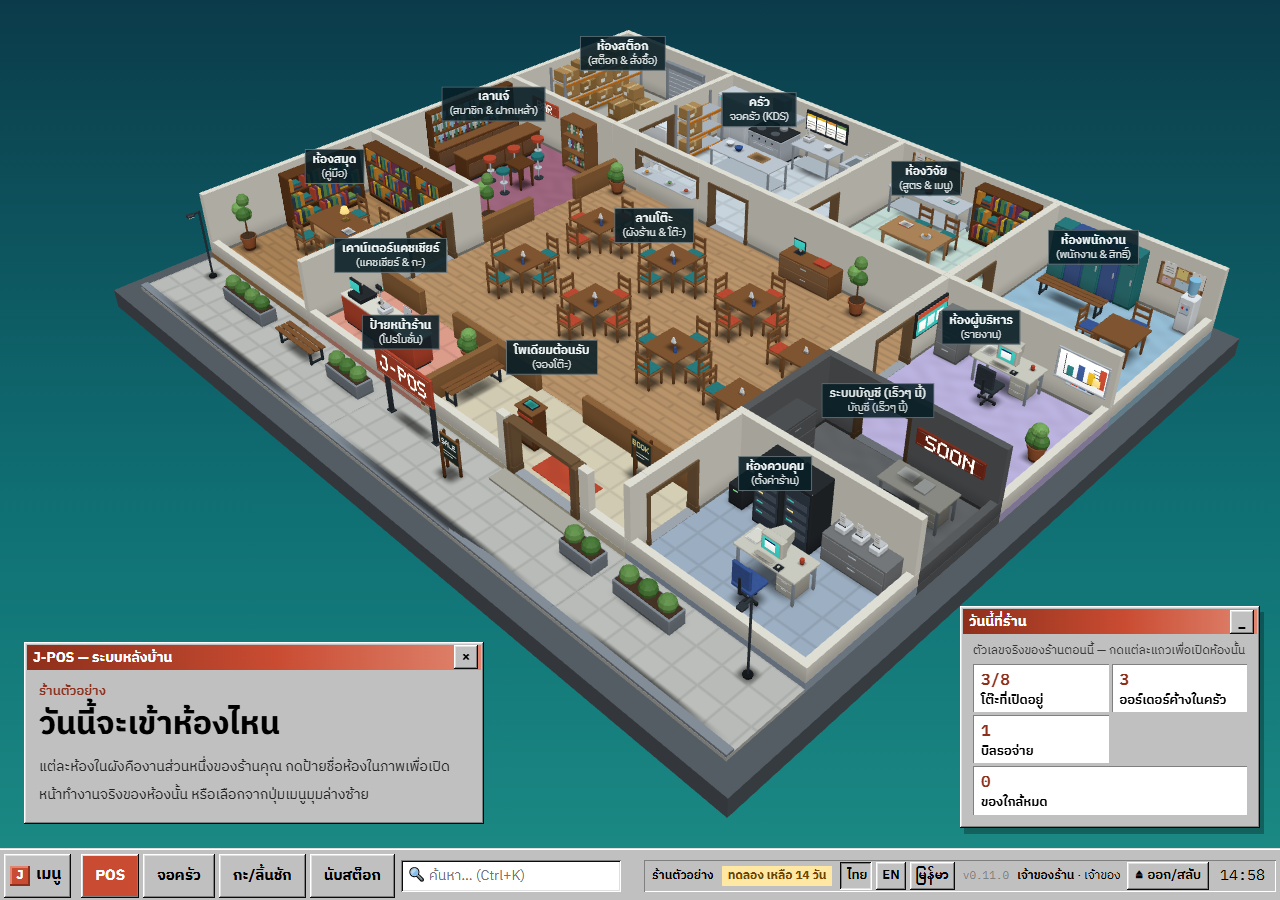
Open full size The “Today at the shop” window
It shows the shop's real numbers right now; tap a row to open that Room: “Open tables” (open/total → the POS), “Kitchen orders waiting” (→ Kitchen), “Bills waiting to be paid” (→ Cashier Counter) and “Items running low” (at the reorder point → Stock Room).
Rows for Rooms this shop or role can't use are left out. The numbers reload each time you come back to the Overview, and the “_” button minimises the window.
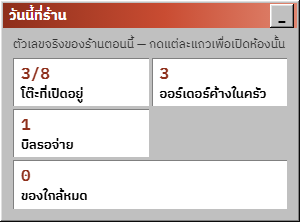
Open full size Greyed-out Rooms
A grey Room carries a note with the reason: “No access” (this role can open nothing in it), “Not in counter mode” (a Room with only table-service work) or “Not in plan”.
A grey Room still opens, and its window explains why it can't be used. When a role can open only one screen in a Room, the icon is labelled with that screen's name.
Open full size
The Room window
Opening a Room, and going back
A Room opens in a window over the shop picture. “← Back to the Overview” is always first in the window head, at every screen width. The × button, the Esc key or a click on the backdrop also go back (Esc does nothing while you type in a field or a dialog is open).
Above 1080 px you can maximise the window with □ or a double-click on the title bar. Narrower screens already show it full height, so that button is not there. On phones the Room opens as a window over the icons.
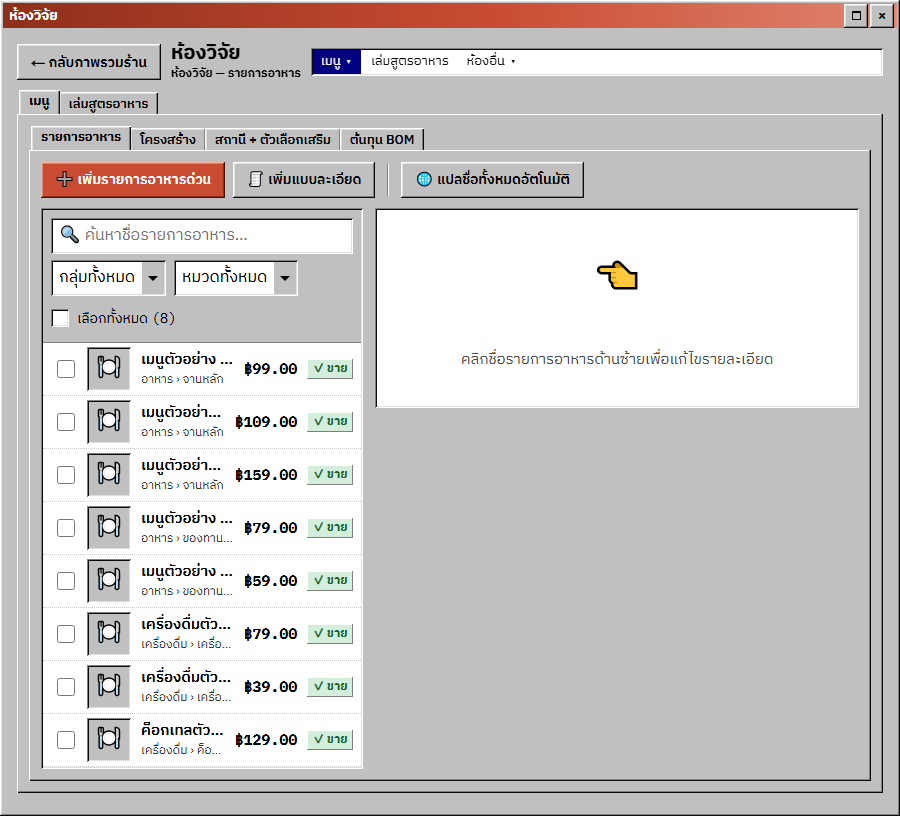
Open full size The Room menu (the bar on the Room window)
The bar at the top of a Room window lists every screen of that Room. A screen with tabs has a ▾ drop-down, items that don't fit go into “»”, and “Other rooms ▾” comes last to jump to another Room without going back (Rooms the role can't open carry “No access”).
On phones it is one “Room menu ▾ · <current screen>” button that opens a list of the screens, then the other Rooms. Keyboard: ←/→ move, ↓/Enter/Space open a group, Esc closes it.
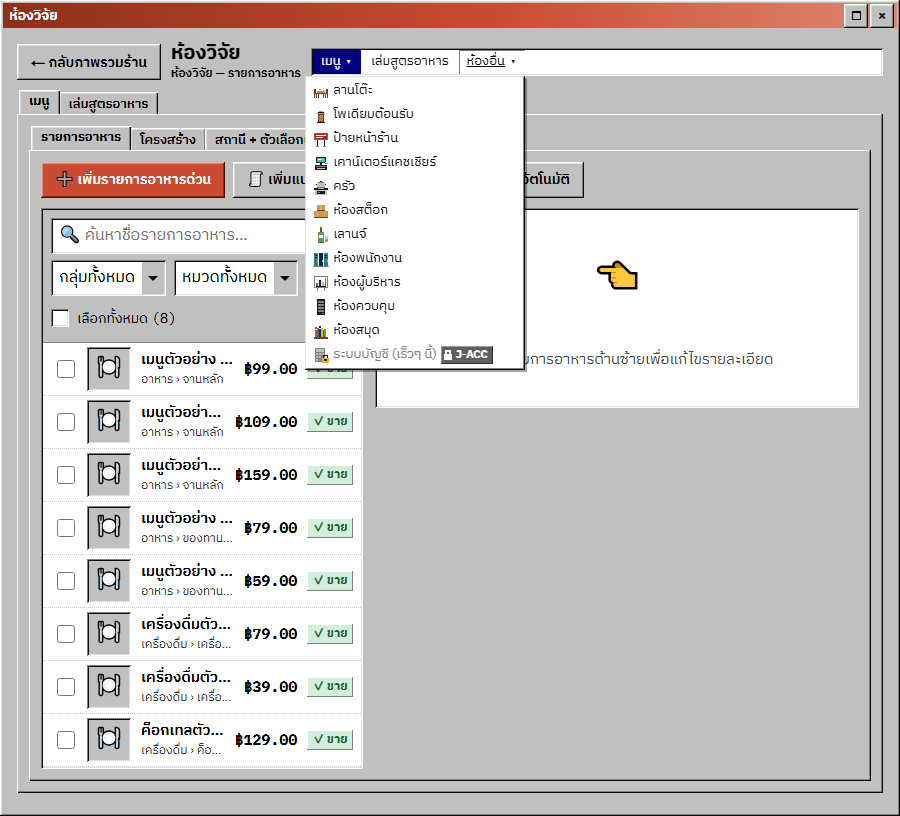
Open full size Tab strips wider than the window
When the tabs don't fit, each end that still hides tabs fades and shows a “‹” / “›” button. One press scrolls about one tab, the buttons go away at the ends, and the selected tab is always scrolled into view.
The arrow keys, Home and End still move between tabs as before.
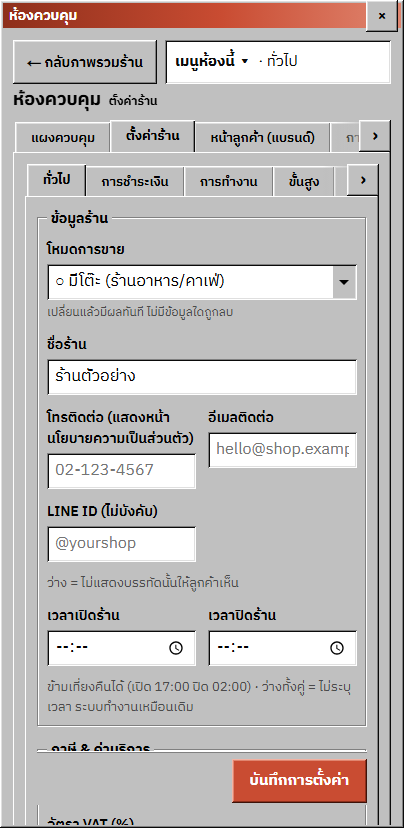
Open full size
Search and the Menu button
Find a function (Ctrl+K)
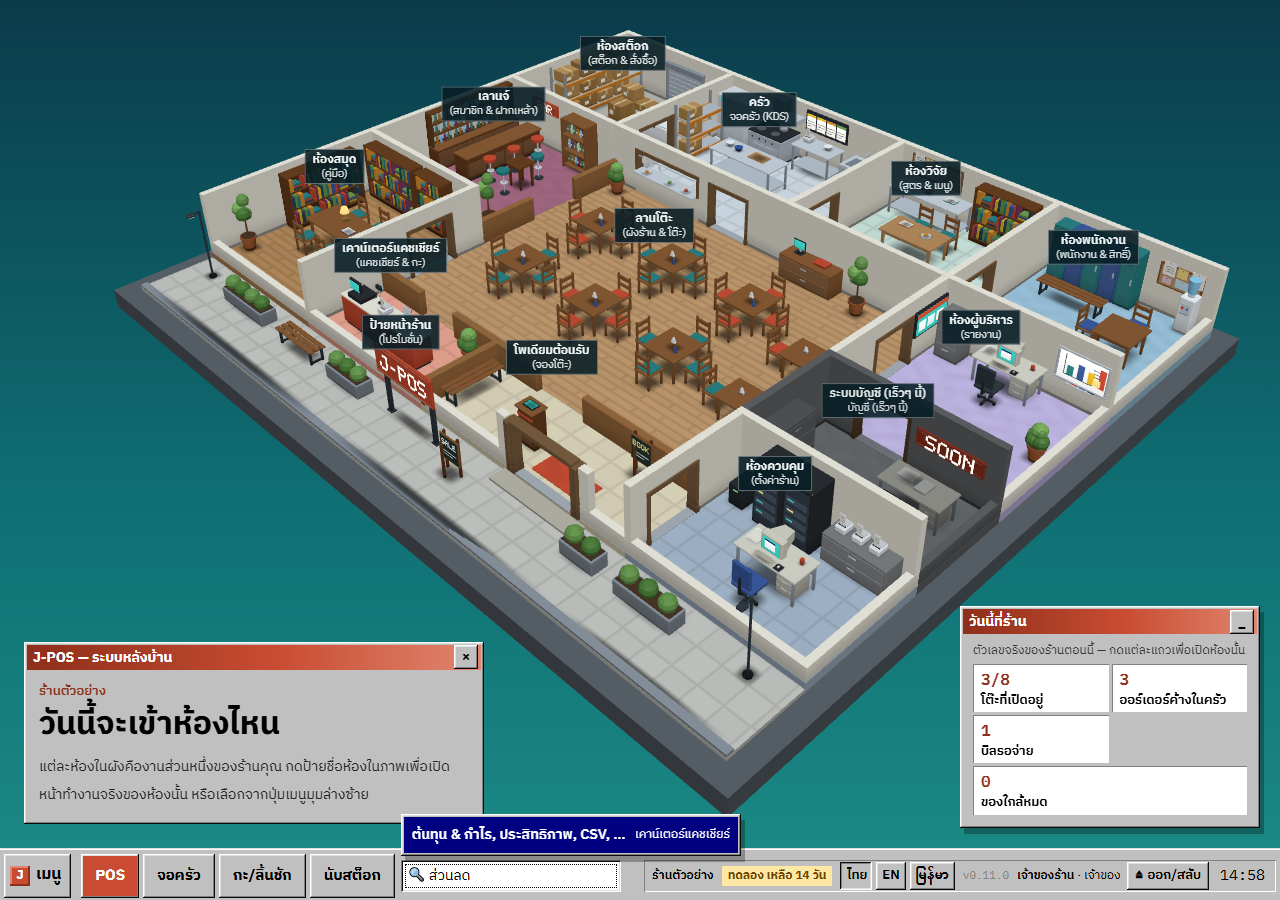
The “Search… (Ctrl+K)” box is on the taskbar. Ctrl+K (⌘K), or “/” outside a text field, jumps to it; up to 1024 px it is a 🔍 button. Type a function's name in Thai, English or Burmese to get up to 8 results, each with the Room it opens in. Use ↑/↓ and Enter; the first Esc clears the box, the next one leaves it.
Results only list what this role may open. Anything outside the plan shows the plan's name and opens the upgrade notice or the plan page; a “Soon” item opens its Room. With no match you see “No function found”.
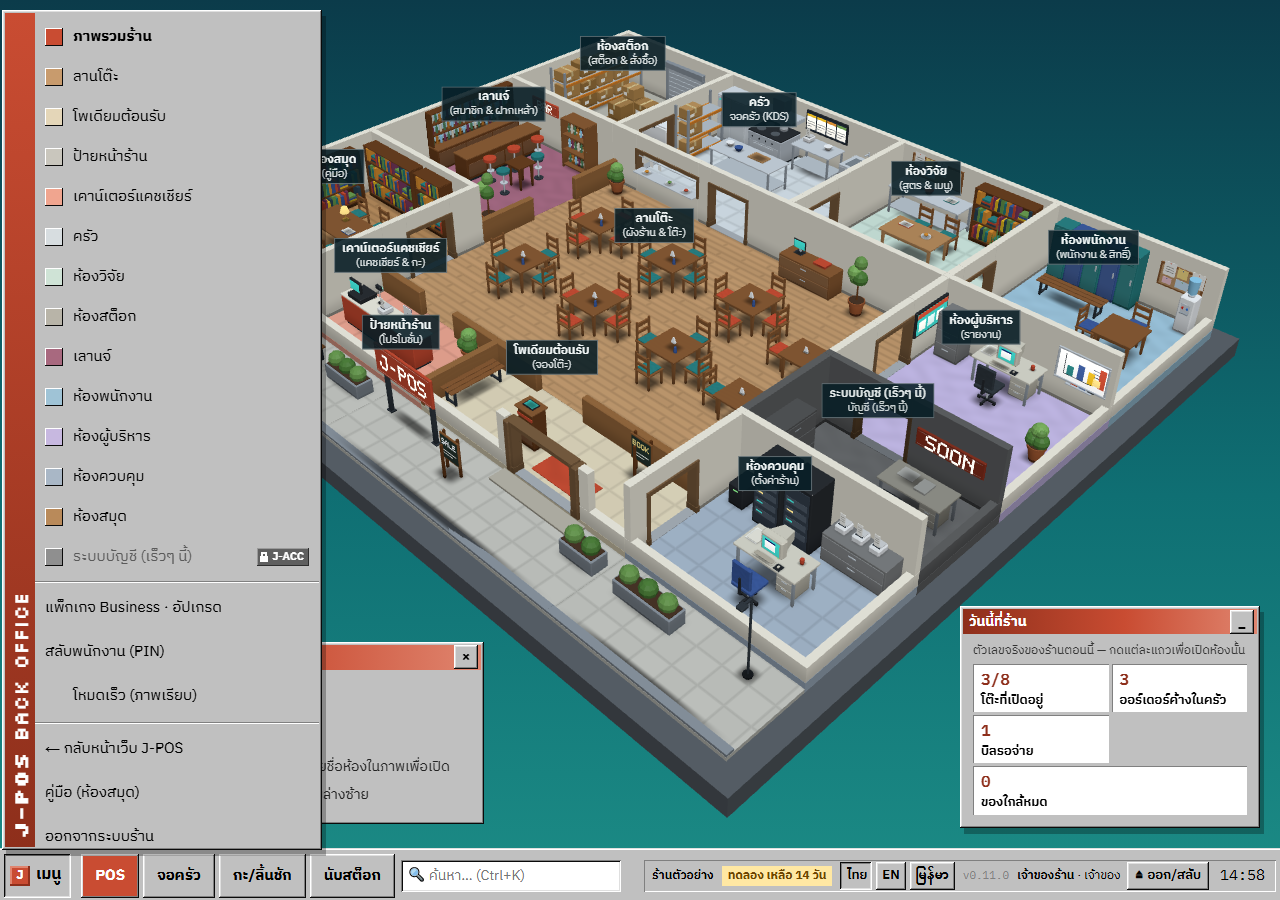
Open full size The “Menu” button at the bottom left
The list starts with the Overview, then the Rooms. Rooms that can't be used are grey with a badge (“Not in the shop's plan”, not in counter mode, or “Soon”). The shop part has “<tier> plan · Upgrade” (to the plan and payments page), “Switch staff (PIN)” and “Fast mode (flat)”.
At the bottom are “← กลับหน้าเว็บ J-POS” (back to the J-POS website), “Help (Library)” and “Log out of the shop”. Up to 1240 px wide, the language buttons move from the taskbar tray into this Menu.
Open full size
Common points of confusion
Esc closes the Room menu first, then the window
If a Room-menu drop-down is open, the first Esc closes it and returns to its button; only the next Esc closes the Room window and goes back to the Overview.
Fast mode is set per device
“Fast mode (flat)” switches the 3D shop picture to a flat drawing at once and is remembered on that device only. It isn't in the phone Menu (phones don't show the picture); phones have a “Plain background” button in the tray instead.
The Control Panel has few tiles, on purpose
Most screens open from their Room or from search. The tiles left on the Control Panel (Recipe book, Bottle keep, Audit log, PromptPay alerts) show only for a role that may open that page but can't enter its Room.
No window names on the taskbar
The taskbar doesn't list open windows. Use “← Back to the Overview” or “Other rooms ▾” to move around, or search with Ctrl+K.