BOOK 04/30Front of house & tables
Taking orders
How to open a table's order screen, pick food items with add-ons and a note, send them to the kitchen/bar, void a sent line, redeem a member OTP, and go to the bill.
Opening the order screen
From the floor to the order screen
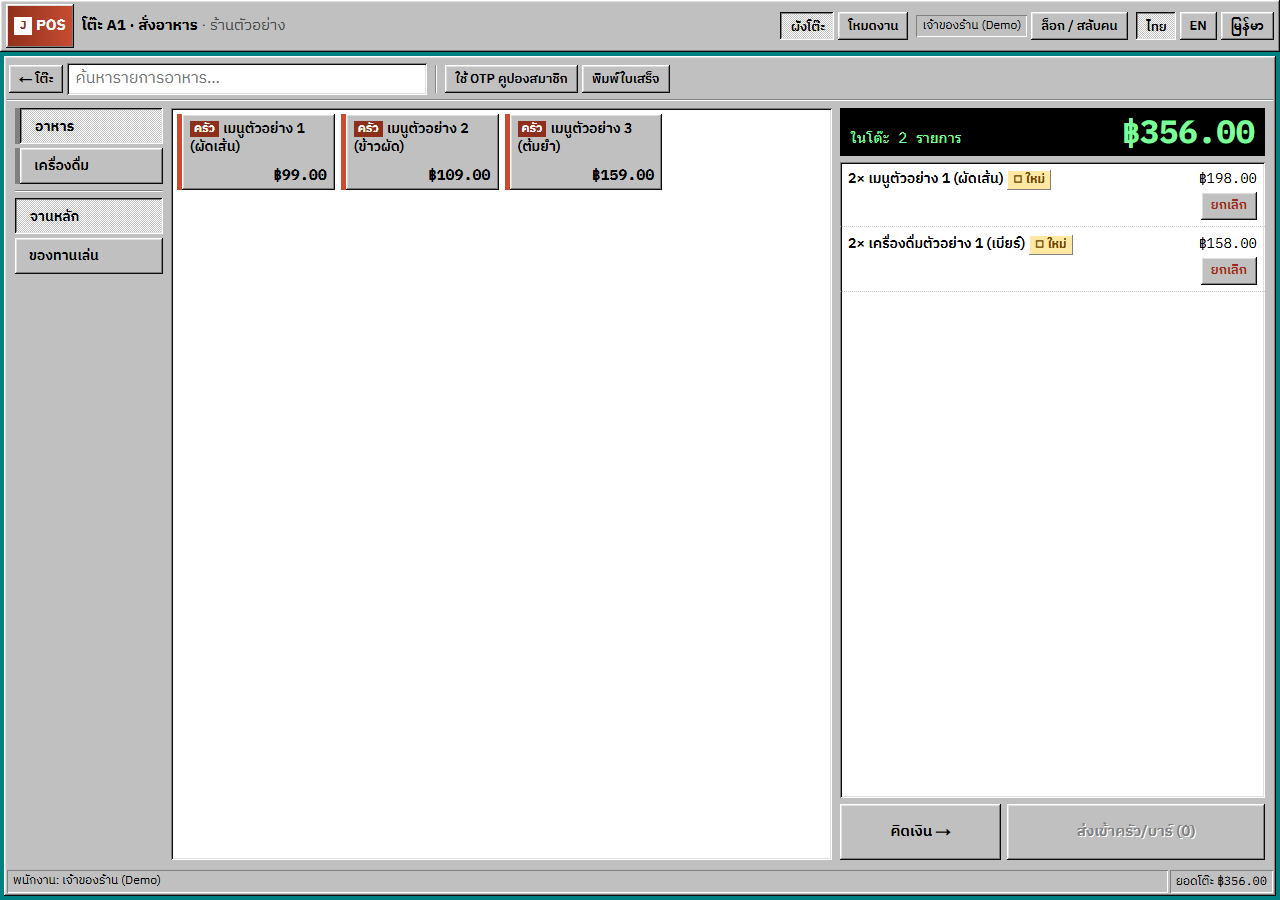
On the POS floor, tap a table and press “Order / Bill” in its popup. The screen is titled “Table <name> · Order”; “← Tables” goes back to the floor, and the status bar shows the staff name and “Table total”.
With no open shift and an empty table, the button adds “ · shift needed”; pressing it shows “Open a shift first” and goes to the shift screen. The table popup itself (move, merge, quick add…) is in the “Floor plan” Book.
Open full size Pick a group and category, or search
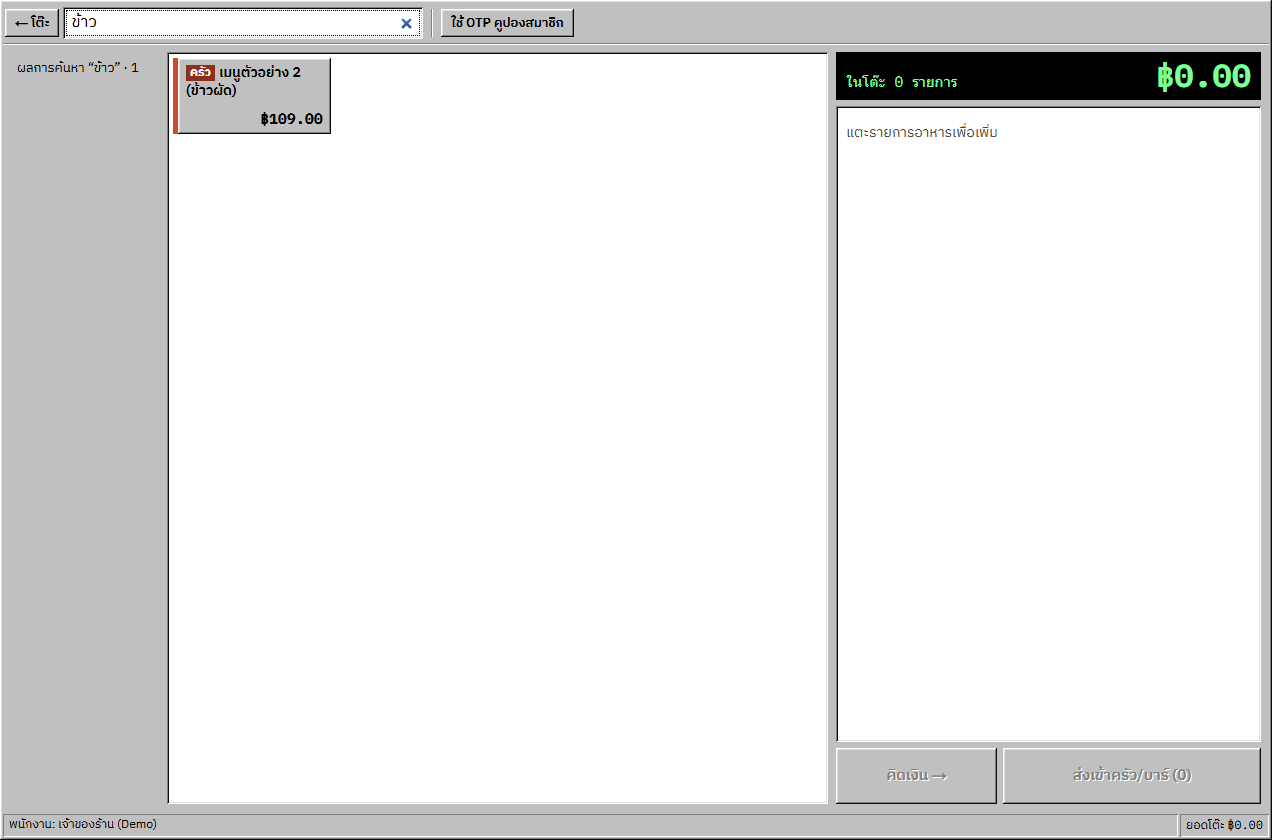
Press a group button, then a category in that group, or type in “Search food items…” (it searches the item's main name). While searching, the group and category buttons are hidden. Each item shows its station tag, “Kitchen” or “Bar”.
In English or Burmese the item's translated name shows as a second line. A shop set to VAT on top sees the note “Prices exclude VAT” near the prices.
Open full size Items you can't order right now
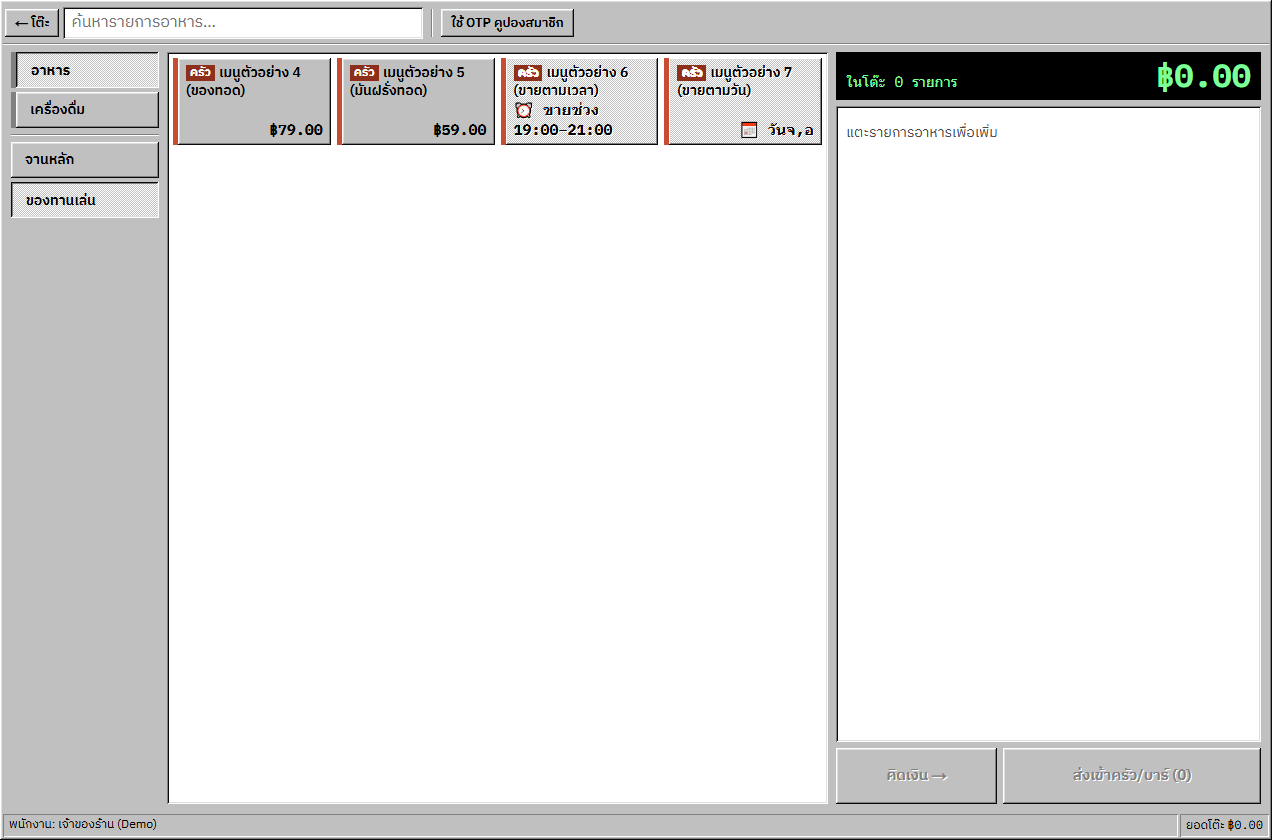
Items switched off for sale are not shown at all. An item outside its selling hours is greyed with “⏰ Sold …”, and one limited to certain dates or weekdays shows “📅 …”; otherwise it shows “Sold out”.
Each item's selling times, dates and days are set as described in the “Menu management” Book.
Open full size
Adding items and sending
Add an item, add-ons and a note
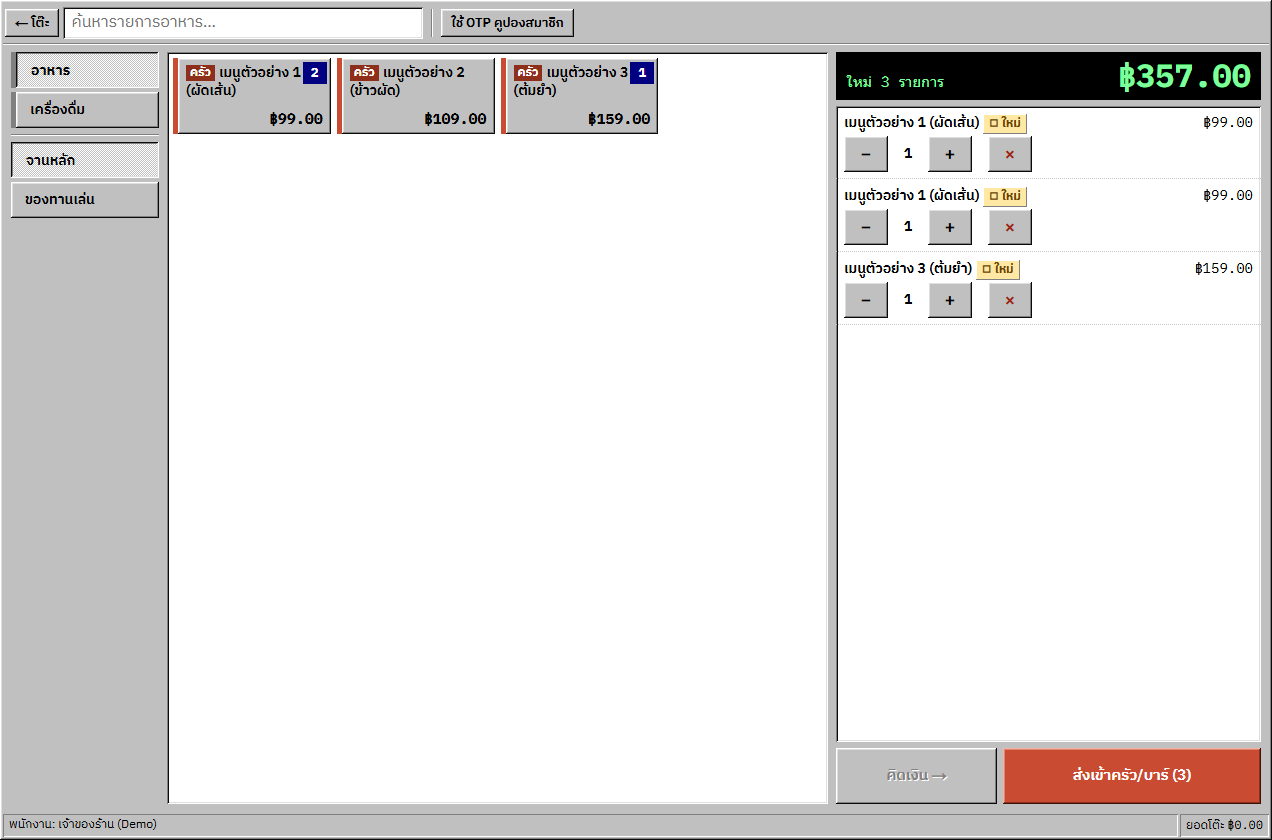
An item without add-ons is added at once: one tap adds 1 to the new items.
An item with add-ons opens a window with its name: “Quantity” (− / +), “Add-ons” (tick any, each shows +฿) and “Note” (e.g. not spicy, no veggies…). Then press “Add to order”.
Open full size Check the new items before sending
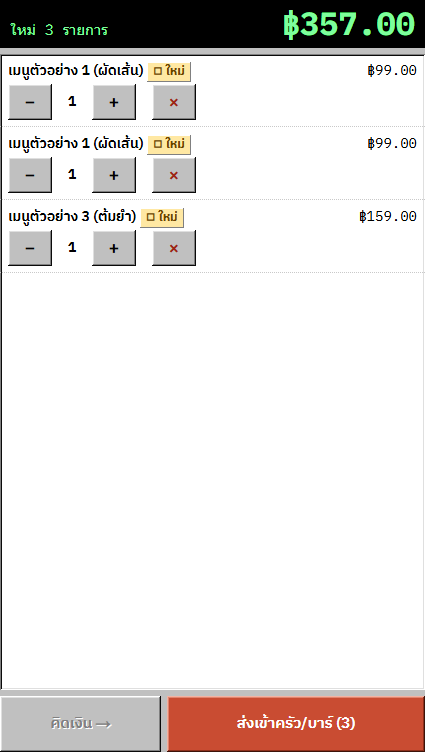
The list header says “N new”. Each unsent line carries “◻ New” with − / + and × “Remove line” (− at 1 also removes the line). On phones the list is a sheet you pull up and down (▲/▼).
Add-ons and the note can't be changed after adding: if they are wrong, remove the line and add it again.
Open full size Send to the kitchen/bar
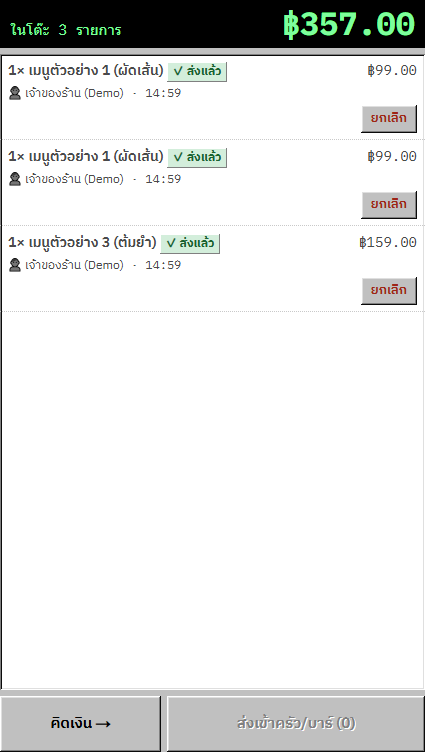
Press “Send to kitchen/bar (N)”. The items are added and sent in one go, one ticket per station. Sent lines carry “✓ Sent” with “👤 staff · time”. If sending fails, the new items stay in the list and “✕ <message>” shows.
Items set to “Skip kitchen/bar” never reach the kitchen display or the kitchen/bar printer, but they are still billed. When the button is disabled it says why, e.g. “Nothing new to send” or “No permission to order”.
Open full size
After sending
Void a sent line
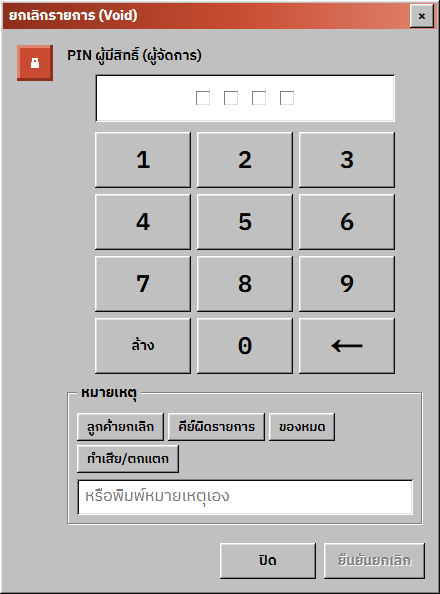
Sent lines show a “Void” button only for someone with the “Void an item” permission. The “Void item” window asks for the “Quantity to void” (part of a line is fine), the “Authorisation PIN (manager)” and a reason (Customer cancelled / Keyed wrong item / Out of stock / Spilled/broken, or your own), then “Confirm void”.
Voided lines show “✕ Voided”. Voiding and comping from the bill screen are in the “Billing / history” Book.
Open full size Redeem a member OTP
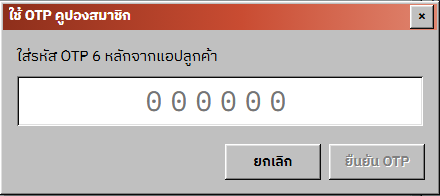
Press “Redeem member OTP” on the toolbar (no open bill is needed), enter the 6-digit OTP from the customer app and press “Confirm OTP”. A free-item coupon adds the item and sends it to the kitchen; if several items qualify, you are asked to “Select free item”. A bottle-withdrawal OTP adds a 0-baht line “เบิกเหล้า: …”.
The button carries a lock badge if the shop's plan has no member app. Coupons and bottle keep are covered in the “Members & loyalty” and “Bottle keep” Books.
Open full size Go to the bill, or print the receipt
“Bill” opens the table's bill screen (disabled with “No order yet” when nothing has been ordered). Taking payment is in the “Billing / history” Book.
“Receipt” issues the bill, prints it on this device's printer, sets the table to awaiting payment and goes back to the floor.
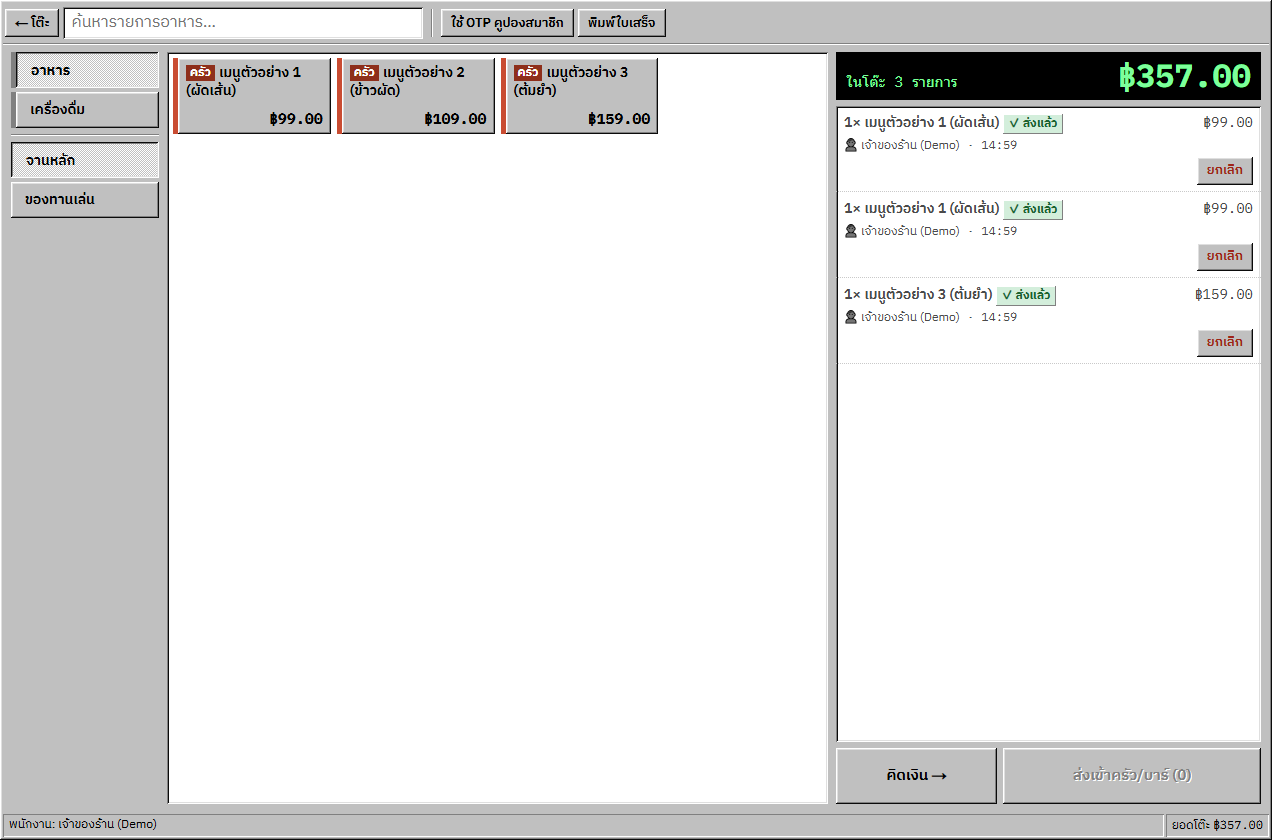
Open full size
Common points of confusion
Another device is keying the same table: only a warning
If someone else has this table's order screen open, you see “! <name> is keying this table — watch for duplicates”. The table isn't locked and both devices can still send, so agree before sending.
The order time lock needs a PIN
In a shop with the order-key lock on, you see “⏱ Order locks in mm:ss”, then “🔒 Order locked — manager PIN required to add items”. Sending then asks for the PIN of someone with “Key in orders after the lock time”.
A billed or paid table
On a billed table, new items merge into the same bill automatically. A paid table must have its bill closed before you can add more (“■ This table is paid — close the bill before adding items”).
A split table can't add or void items
When the table's bill is split and a part is still unpaid, adding or voiding is refused: pay every part or cancel the split first; then a new order can be opened on the table as usual.
No guest count, and quick add lives in the table popup
The order screen doesn't ask for a guest count; the table gets its order when the first item is sent. The “Quick add — tap to add” buttons are in the table popup on the floor, not on this screen.