BOOK 12/25Menu & stock
Stock check
Count physical ingredients against the system's numbers, adjust stock when needed, check current levels and low-stock alerts, and look back through the full stock movement history.
Stock check (physical count vs system)
Open the stock check screen
What you see depends on your permission: regular staff (count permission) get a “blind” screen — just the ingredient name, unit, and a field to enter the counted quantity, with no system number shown at all. Managers (review/adjust permission) get the full view — system quantity, counted quantity, variance, and a lock/adjust action per row.
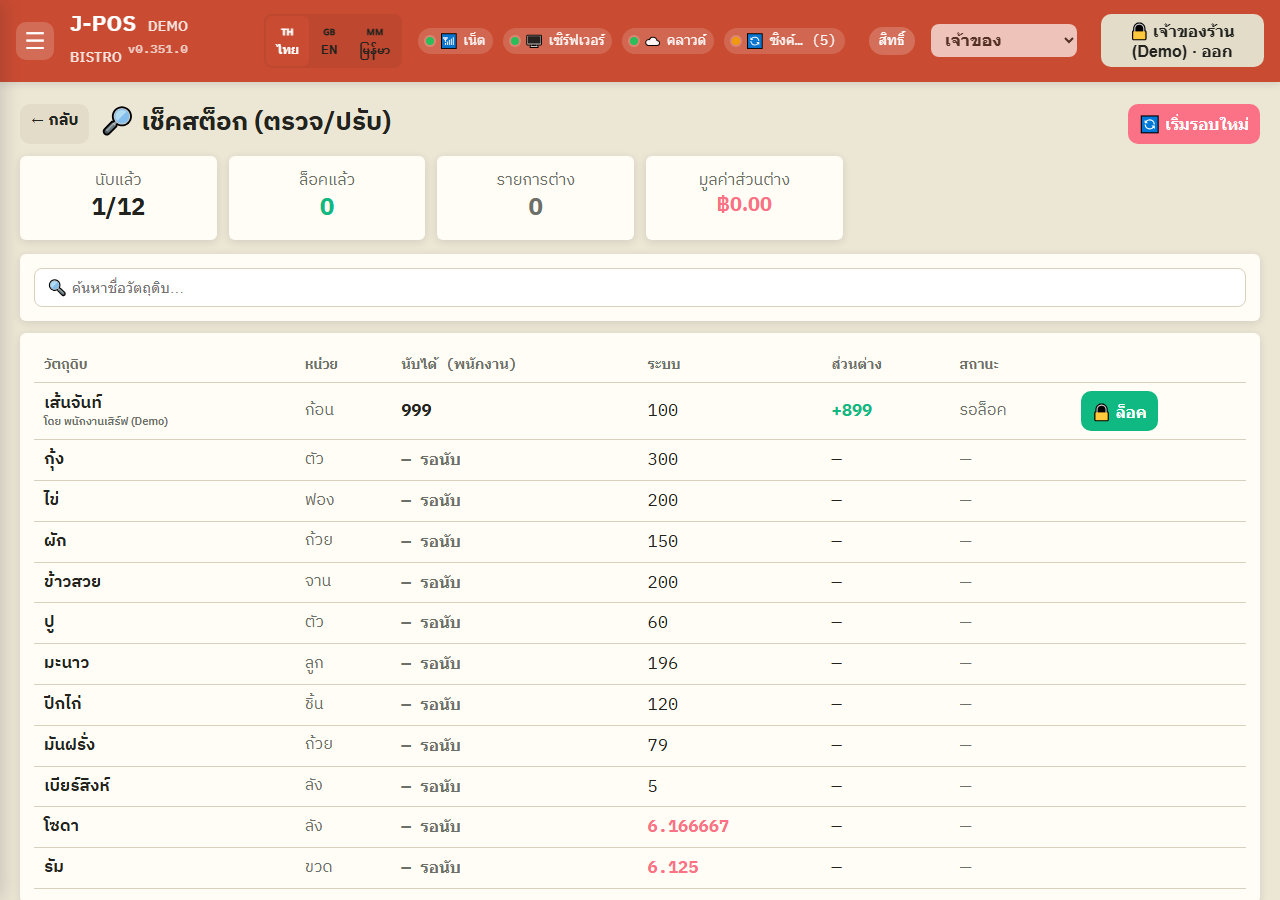
Open full size Staff: enter the counted quantity
Search for the ingredient by name in the search box, pick whichever unit is convenient (the held unit or the deduct unit, if that ingredient supports both), enter the actual counted amount, and save.
Updates are real-time — a manager sees a staff member's entry appear live on another device without needing to refresh.
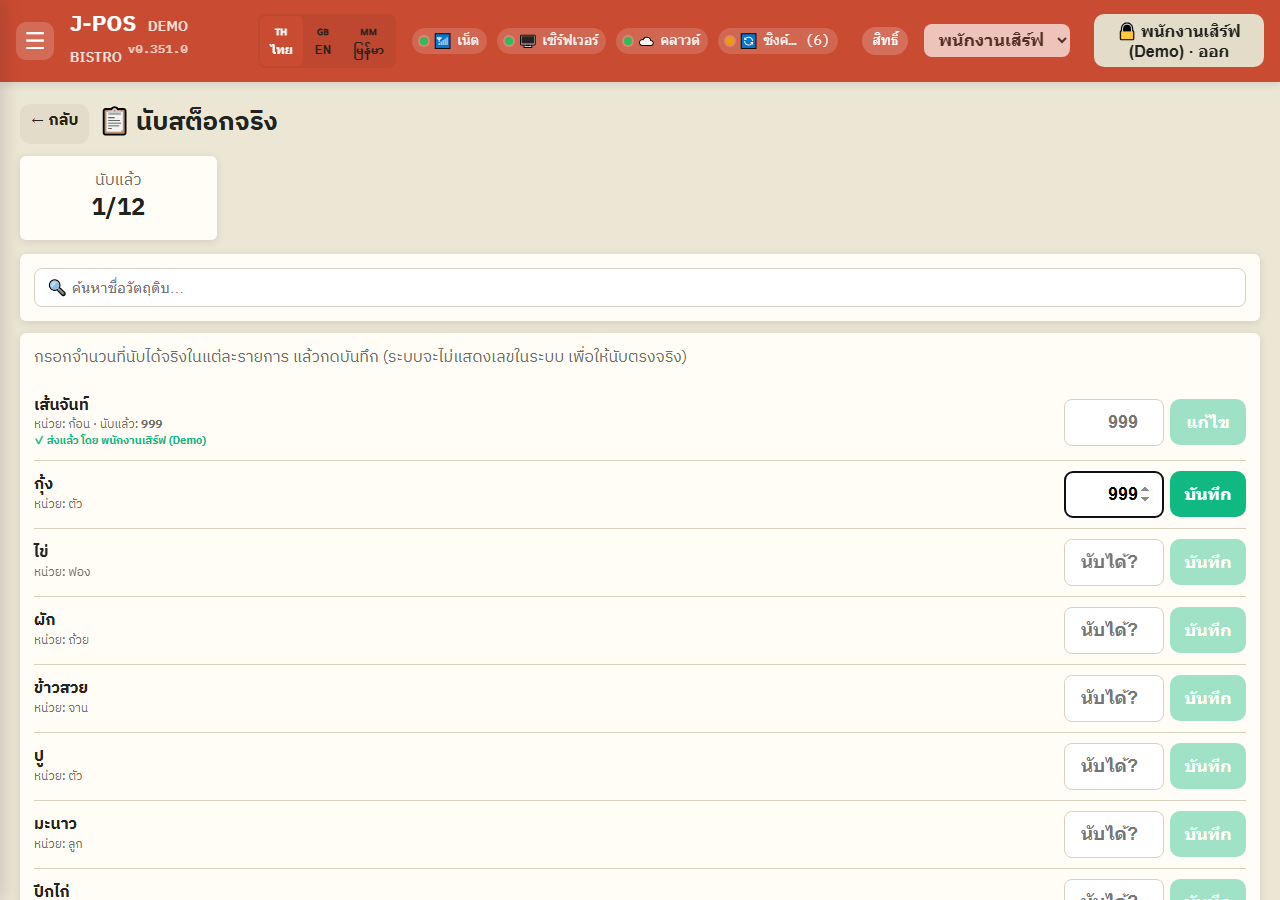
Open full size Manager: lock the count and handle variances
If the counted number matches the system, you can lock it right away. If it differs, a popup opens asking for a variance reason (e.g. broken/spoiled, spilled, missing, wrong intake entry, deduction error).
Then choose either “Adjust system stock → to the counted amount” or “Keep system value — lock without adjusting” (which just records the variance as information, without changing the stored quantity).
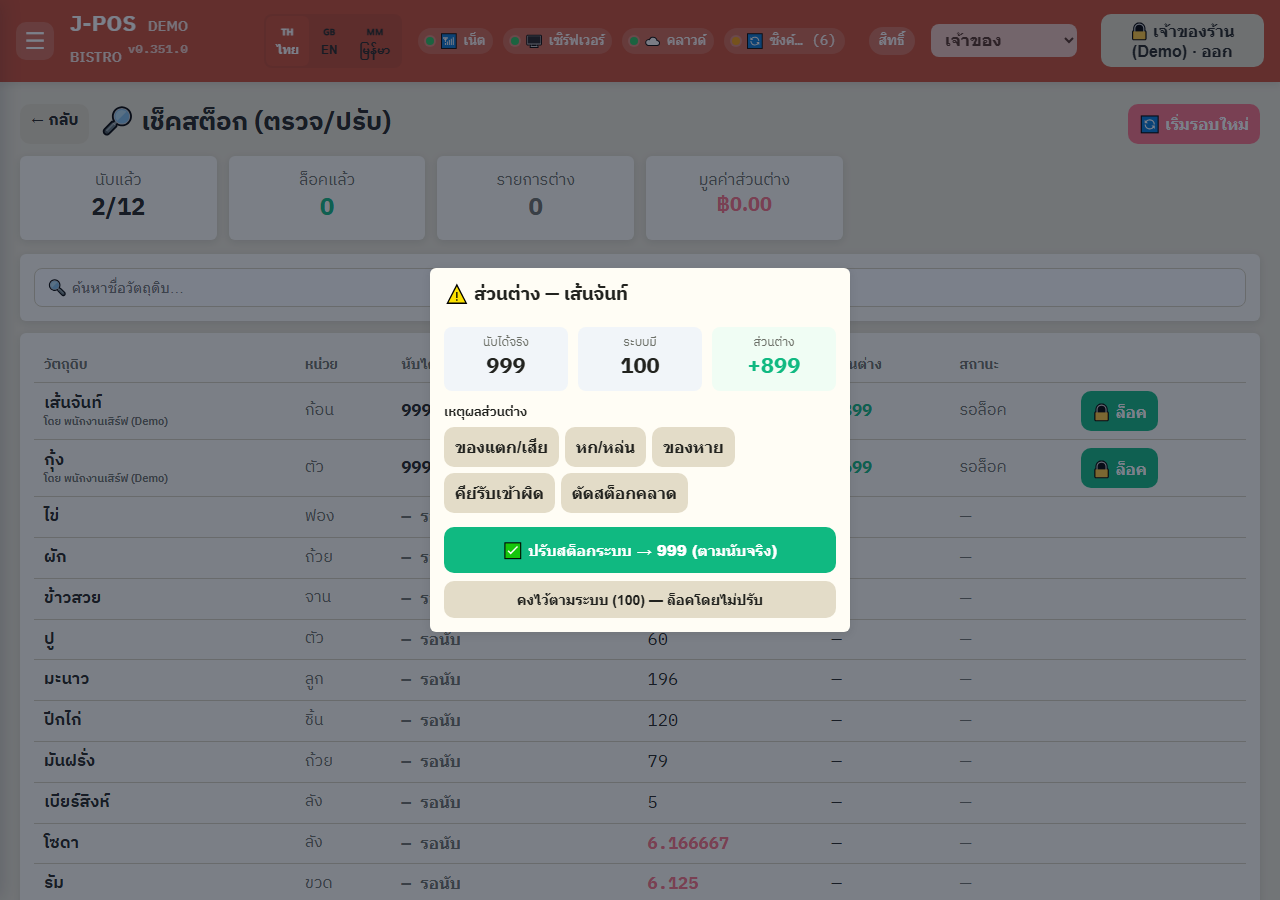
Open full size Start a new count round
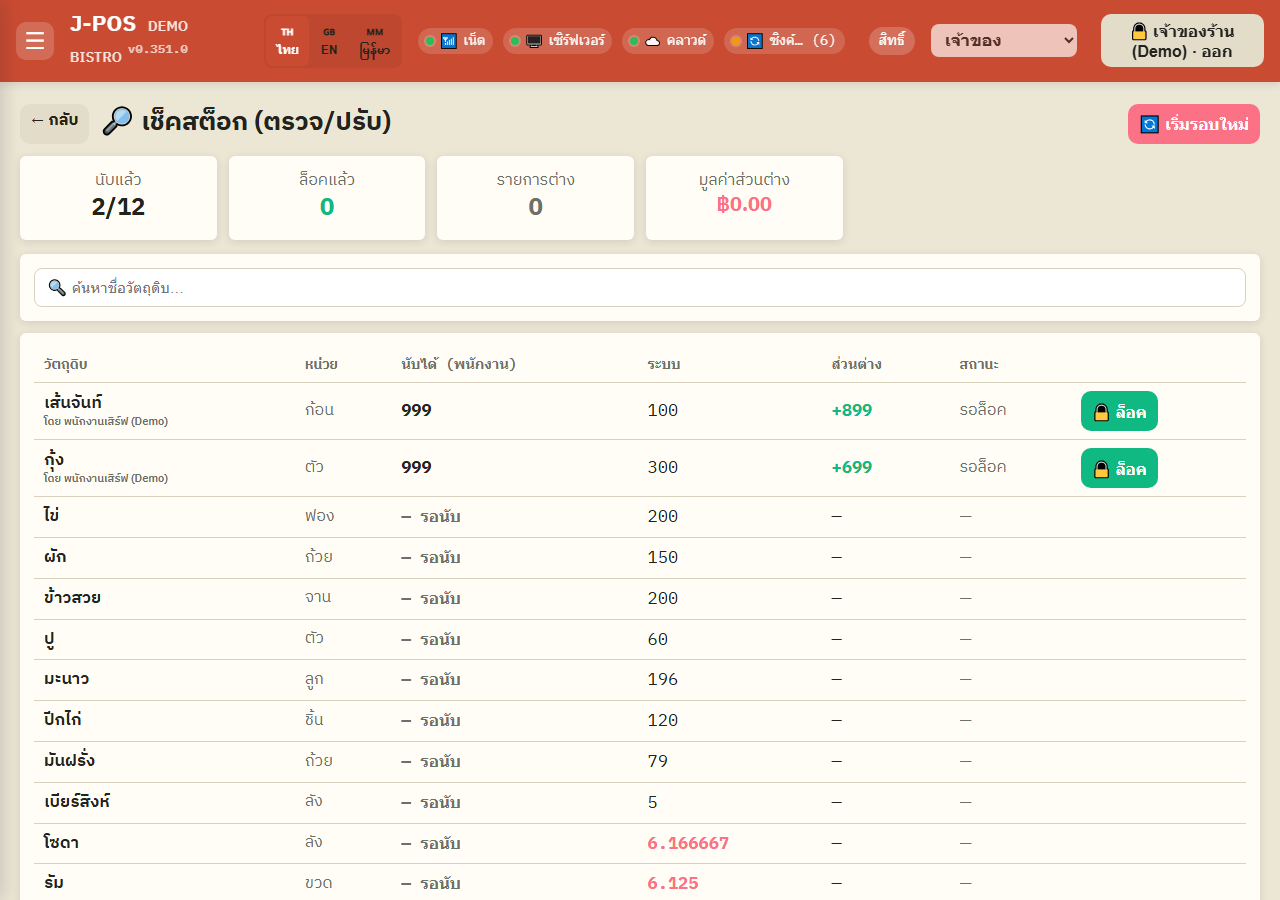
A manager can press “New round” to close the current count round and start fresh — the old round is closed but its history stays intact, nothing is lost.
Open full size
Direct stock adjustment + current levels / history
Adjust stock directly from the ingredient list
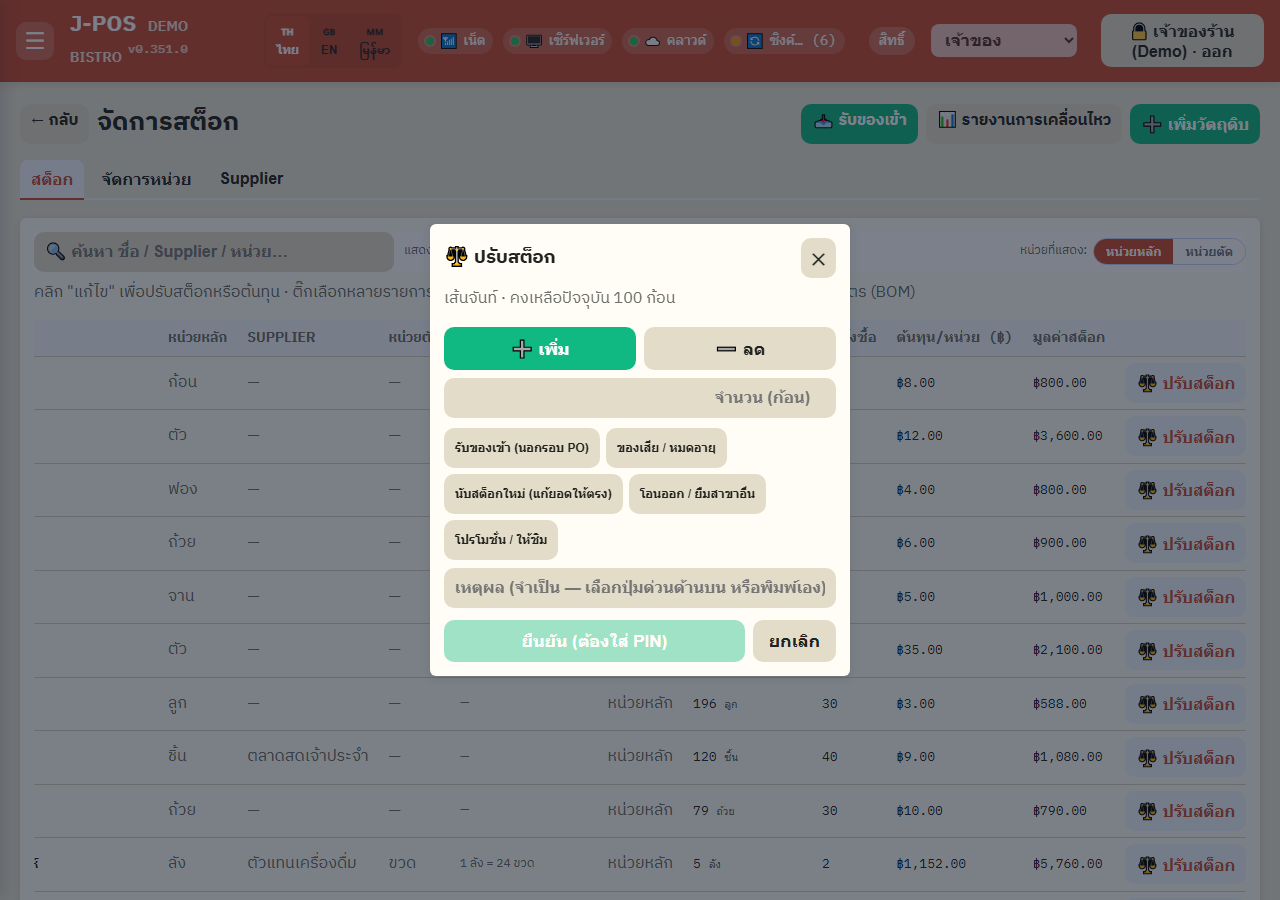
The admin ingredient list has an “⚖️ Adjust stock” button on each row — use this to fix a single item's quantity without waiting for a shop-wide count round. It always requires an authorized PIN and a reason before it saves.
Open full size Check current stock levels and low-stock alerts
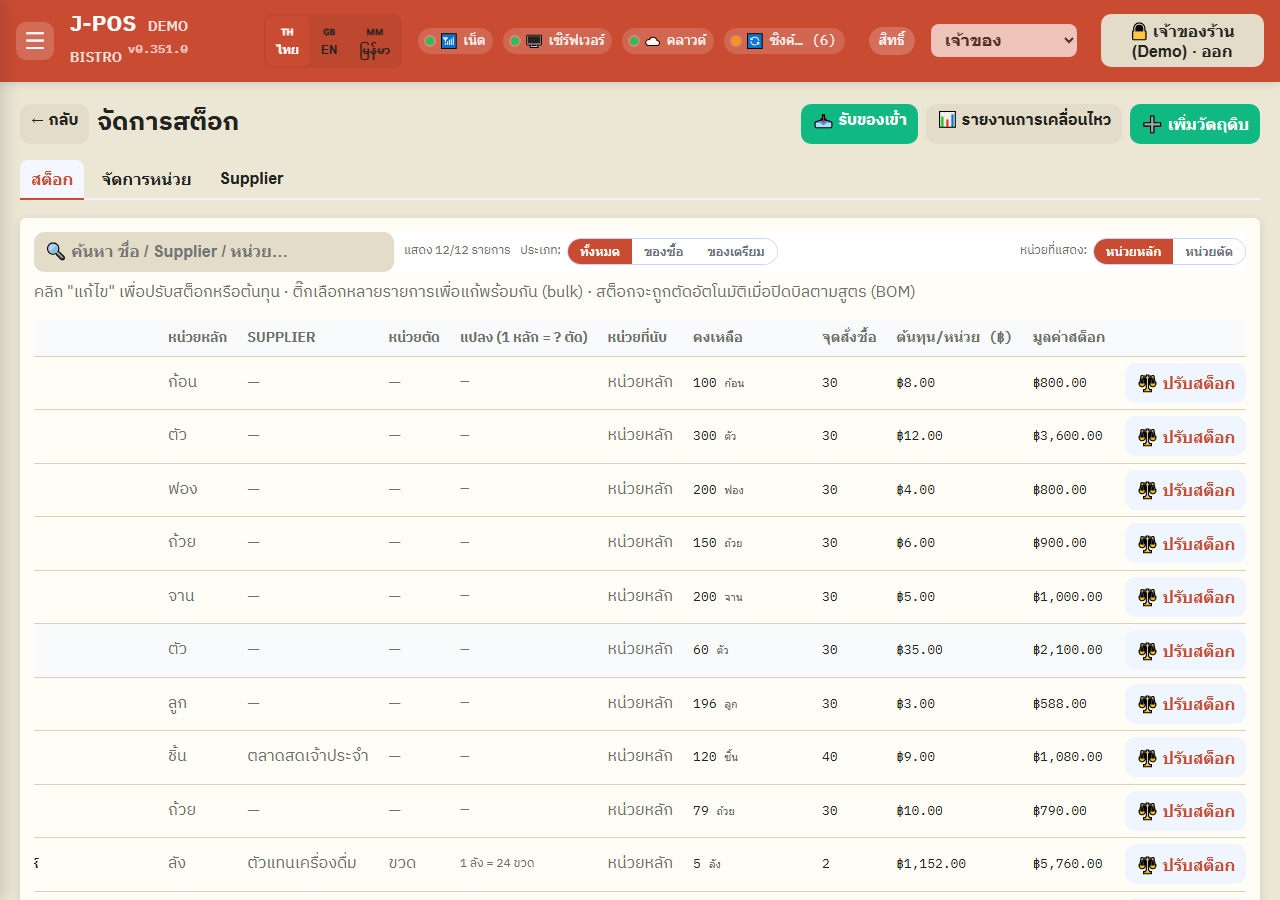
The ingredient list shows the current quantity of every item, with a ⚠️ icon whenever it drops below that item's configured alert threshold.
You can switch the display unit (the received unit, or the per-menu deduct unit) to whichever is easier to read.
Open full size Review the stock movement history
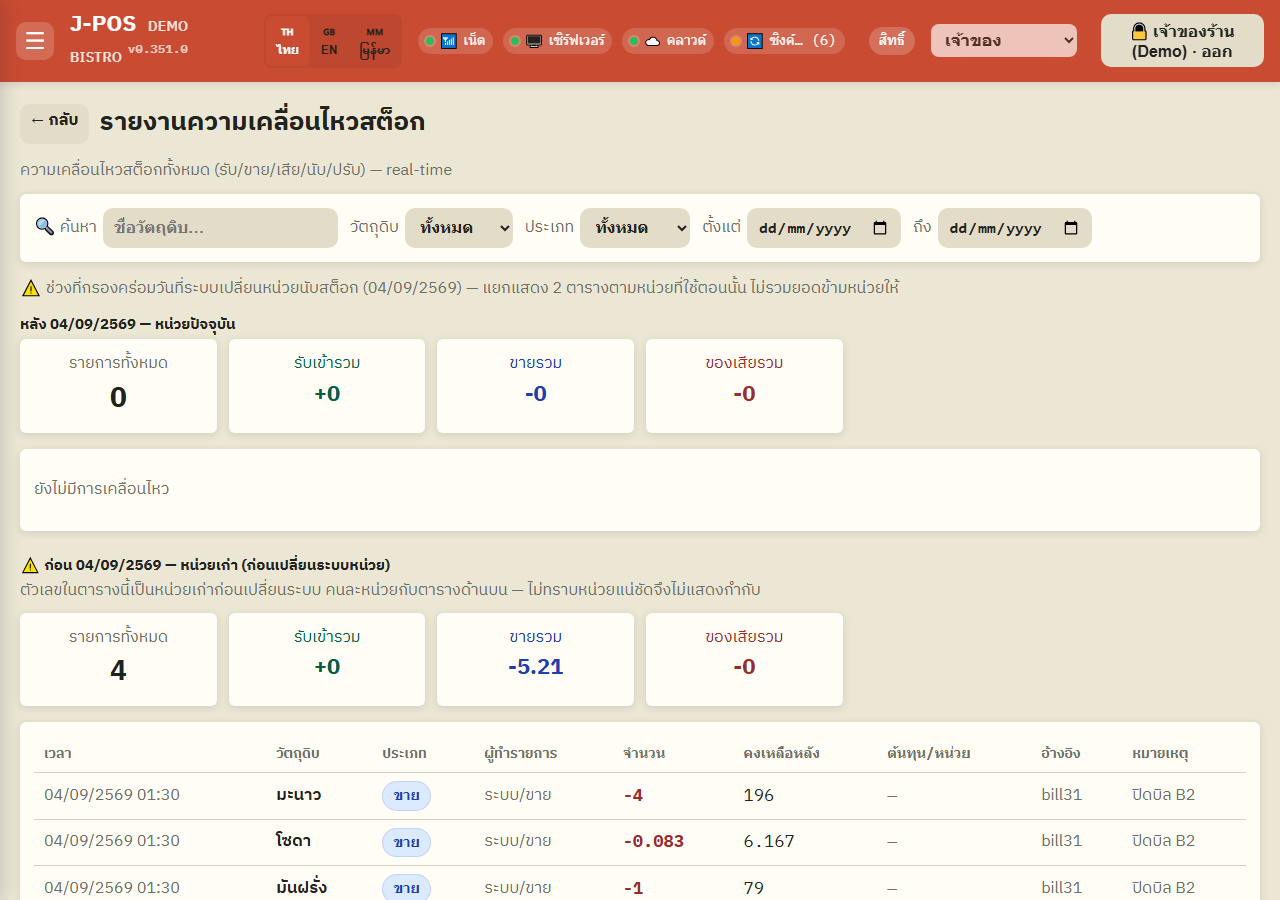
The stock movement report lists every change to every ingredient, clearly typed: receive, sale, waste, count, adjust, or produce (prep batch) — each with the resulting balance right after that entry.
Filter by date range to trace where a quantity went, or who made a given adjustment.
Open full size
Common points of confusion
Staff never see the system number on the count screen — by design
The staff "blind" screen deliberately hides the system quantity, so nobody just types back whatever the system already shows instead of physically counting. That makes the resulting numbers trustworthy.
Every stock adjustment, from either path, lands in the history
Whether an adjustment comes from locking a variance during a stock check or from the direct "Adjust stock" button on the ingredient list, it always creates an entry in the stock movement history — there's no adjustment that leaves no trace.
"Keep system value" when locking a variance means no real change
If a manager picks "Keep system value — lock without adjusting", the stored quantity doesn't change at all; only the observed variance gets recorded for reference. Only "Adjust system stock" actually changes the real number to match what was counted.