BOOK 22/25Staff & system
Permissions (RBAC)
The permission system (RBAC) controls which pages, buttons, and menu items each staff member can see — through 5 fixed roles (owner/manager/assistant manager/cashier/server) and a 28-key permission matrix the owner can toggle per role from the “Staff” page's “Permissions” tab. This screen is the control point that affects every other module in the system — a mistake here means the wrong person can genuinely open or close features.
Open the permission matrix
Go to “Staff” and open the “Permissions” tab
Go to the “Staff” menu (requires either staff.manage or permission.manage to even see this page), then click the “Permissions” tab — that tab only shows up if you hold permission.manage, unlike the “Staff” tab which only needs staff.manage.
The table is laid out as rows = functions/permissions, grouped by category (Order/Bill/Payment/Menu/Inventory/Reports/Admin/Members), columns = every role that exists in the system.
The “owner” role carries a “✦ owner” tag, and every row's checkbox for that column renders as a locked checkmark instead — the owner always holds every permission and this can't be changed, not even by the owner themselves, from this table.
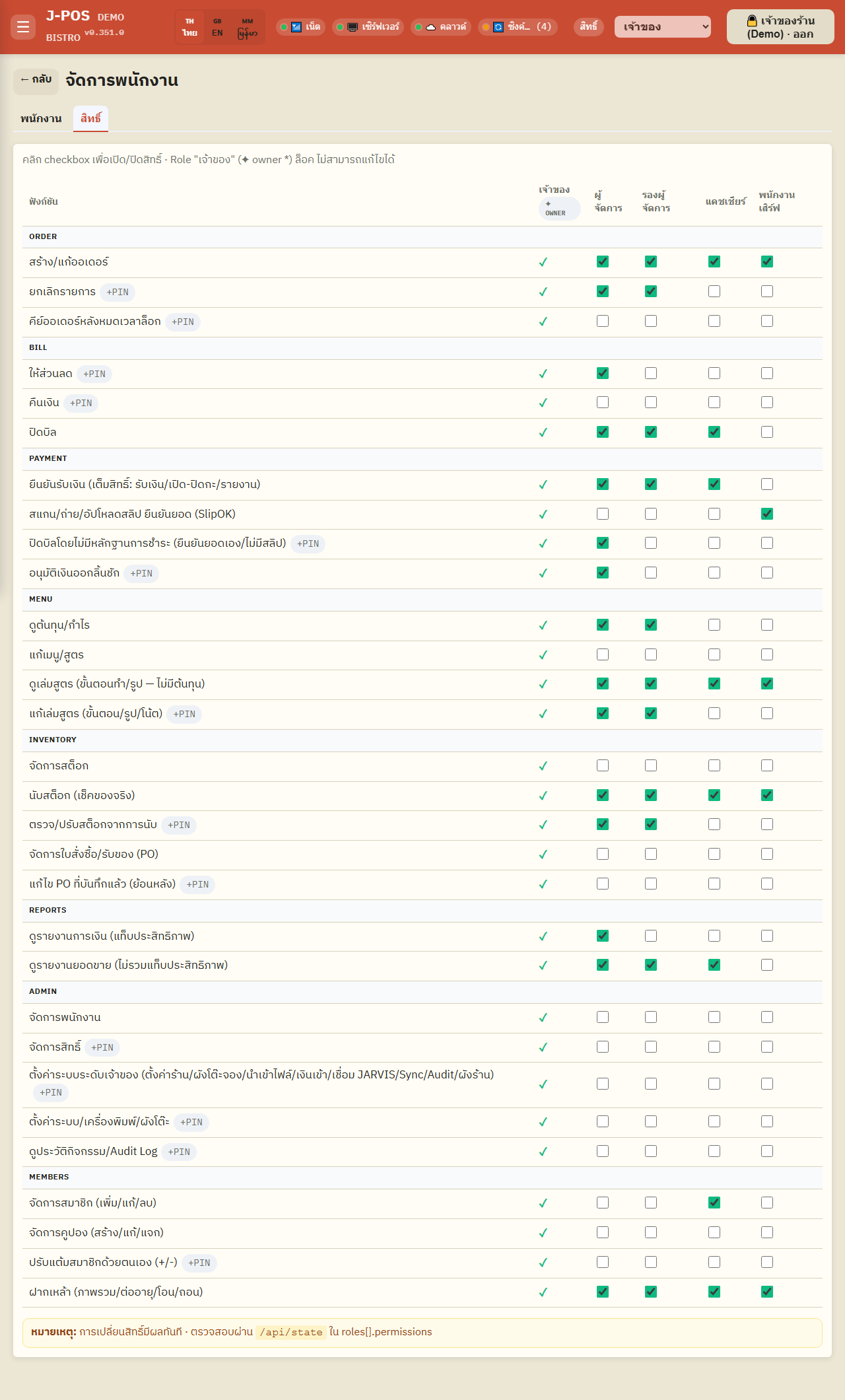
Open full size Every permission key in the system, by group, with its real effect
Order group — order.create: create/edit an order (basic button, not sensitive). order.void_item: void a line item (sensitive — always requires an authorized PIN before confirming). order.after_timelock: key in an order after the order-lock time (sensitive — requires a PIN).
Bill group — bill.discount: apply a discount (sensitive — requires a PIN). bill.refund: refund (sensitive — requires a PIN; if the shop has dual-authorization on, it needs two different staff PINs). bill.close: close a bill (not sensitive).
Payment group — payment.confirm: confirm payment received (full authority: payments/open-close shift/reports) — gates both the “Shift” page and “Bill history”. payment.slip_verify: scan/photograph/upload a slip to confirm an amount (SlipOK), not sensitive. payment.confirm_no_slip: close a bill with no payment evidence (sensitive — requires a PIN). cash.paid_out: approve cash leaving the drawer (sensitive — requires a PIN).
Menu group — cost.view: view cost/margin — important: this does NOT gate the whole menu-edit page, only whether the “BOM cost” tab inside that page is visible. menu.edit: edit menu/recipes, gates the whole “Edit menu” page. recipe.view: view the recipe book (steps/photos — no cost figures), gates the “Recipe book” page. recipe.edit: edit the recipe book (steps/photos/notes) — flagged sensitive in the registry, but today it's enforced as a plain permission check with no PIN prompt when saving.
Inventory group — inventory.manage: manage stock, gates several pages at once (inventory, receiving, waste, purchase orders, order plan, stock report). stock.count: count stock (physical check), gates the “Stock check” page. stock.reconcile: review/adjust stock from a count (sensitive — requires a PIN). purchase.manage: manage purchase orders/receiving, gates the purchase-order page (inventory.manage alone also grants entry). purchase.edit: edit an already-saved PO retroactively — flagged sensitive, but today it's also just a plain permission check with no PIN step-up here either.
Reports group — reports.financial: view financial reports (performance tab), gates the shift-history page. reports.view: view sales reports (excluding the performance tab), gates the main “Reports” page.
Admin group — staff.manage: manage staff, gates the “Staff” tab. permission.manage: manage permissions (sensitive), gates the “Permissions” tab on this very page — no role holds this by default except the owner. system.admin: owner-level system settings (sensitive), gates the 8 most sensitive pages (shop settings/floor plan/reservation table layout/import-export/payment alerts/JARVIS integration/Sync/Audit log) — likewise no role holds this by default except the owner. settings.manage: system/printer/table-layout settings (sensitive), gates several other pages (promotions, members, all 3 reservation pages, printers, shift, shift history, discount report) and also acts as a fallback authority for several other functions. audit.view: view the activity/audit log (sensitive), gates the audit-log page directly — no role holds this by default.
Members group — member.manage: manage members (add/edit/delete) — the one key in this group that's commonly already checked for the cashier role in practice (not from the fresh-install defaults, but from a system update that auto-grants it). coupon.manage: manage coupons (create/edit/distribute) — held by no role by default. points.adjust: manually adjust a member's points +/- (sensitive — requires entering a PIN to confirm the save) — also held by no role by default. All 3 of these keys gate the members page together as “any one of them is enough”. bottle.keep: bottle-keep service (overview/renew/transfer/withdraw), gates the bottle-keep page specifically — in practice this is usually checked for nearly every non-owner role too, through the same kind of system update as member.manage.
Open full size
Toggle a single permission with a checkbox
Click the checkbox at (permission row × role column) to toggle it
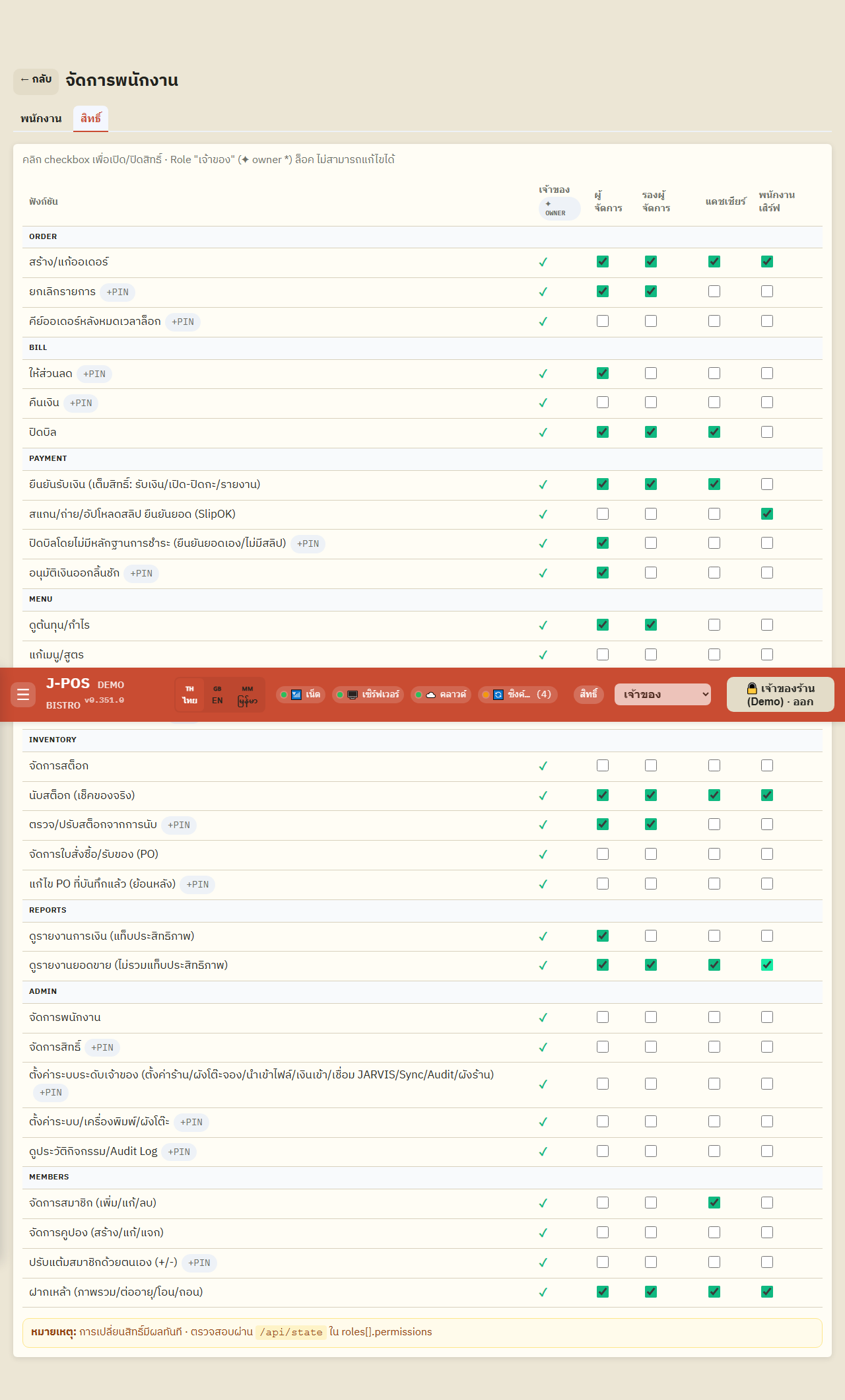
Click the checkbox at the intersection of the permission row you want and the role column you want to grant or remove it for — it saves immediately, there's no separate “Save” button.
A permission whose name carries a “+PIN” tag is flagged as sensitive in the system's registry — but that doesn't mean every one of them actually pops up a PIN prompt when used today. Confirmed to genuinely require a PIN at the point of use: order.void_item, order.after_timelock, bill.discount, bill.refund, payment.confirm_no_slip, cash.paid_out, stock.reconcile, and points.adjust. permission.manage, system.admin, settings.manage, purchase.edit, and audit.view also carry the +PIN tag but today are enforced purely as a regular permission check, with no separate PIN prompt yet.
Toggling a permission this way takes effect immediately for every staff member currently holding that role — verified live: granting the “view sales reports” permission to the server role while a logged-in server had a screen open elsewhere, the “Reports” menu appeared on their next data refresh (no logout needed at all).
Open full size
Assign a role to each staff member
Pick a role from the dropdown on the “Staff” tab
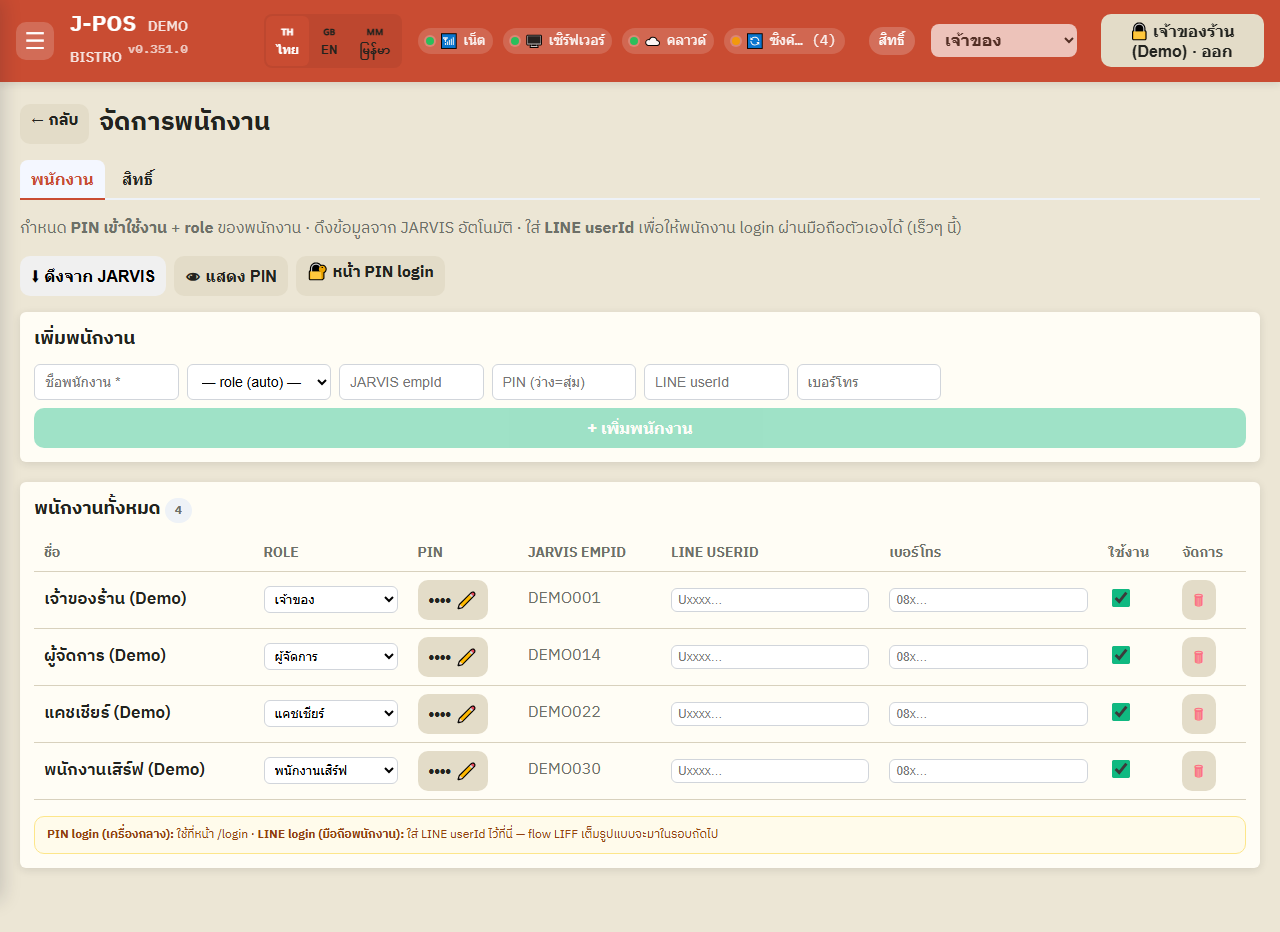
The system has 5 fixed roles (owner, manager, assistant manager, cashier, server) — there's no button here to create a new role; adding a different kind of role requires contacting the dev team.
On the “Staff” tab, each staff row has a role dropdown — changing it changes which permission set that staff member holds.
Open full size
What actually happens when permissions change — verified live
Example: a role without report access simply doesn't see that menu at all
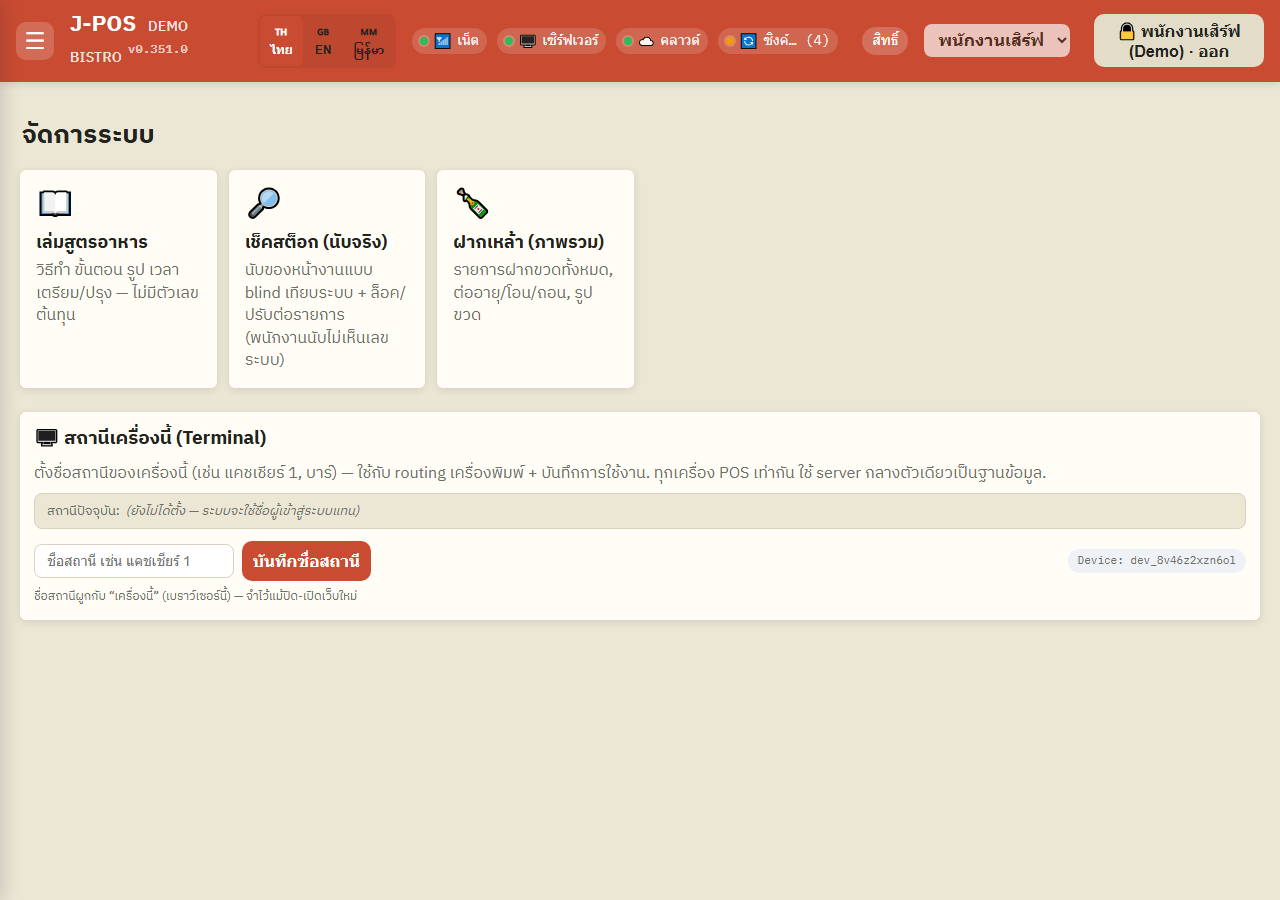
Verified live by logging in as a server (no reports.view by default) — the main hub shows no “Reports” card to click at all; it's not merely disabled, it's not rendered in the first place.
To let a role see this menu, grant it reports.view (or settings.manage) in the permission matrix first.
Open full size Reassigning a staff member's role (not just toggling a permission) needs them to log out and back in before their screen matches the new role
Verified live: reassigning a logged-in server's role to manager (from the “Staff” menu) — the screen they had left open (never logged out) kept showing the old role's menus, missing the reports menu a manager should have, because the browser cached the role from their last login.
But the server doesn't wait: if that same staff member clicks a button that hits the server (e.g. opening the cash drawer, which requires payment.confirm), the call succeeds immediately under the new role — even though the UI hasn't rendered that button as available yet. In short: server-side enforcement always uses the current role instantly; the on-screen buttons/menus only catch up once that staff member logs out and back in.
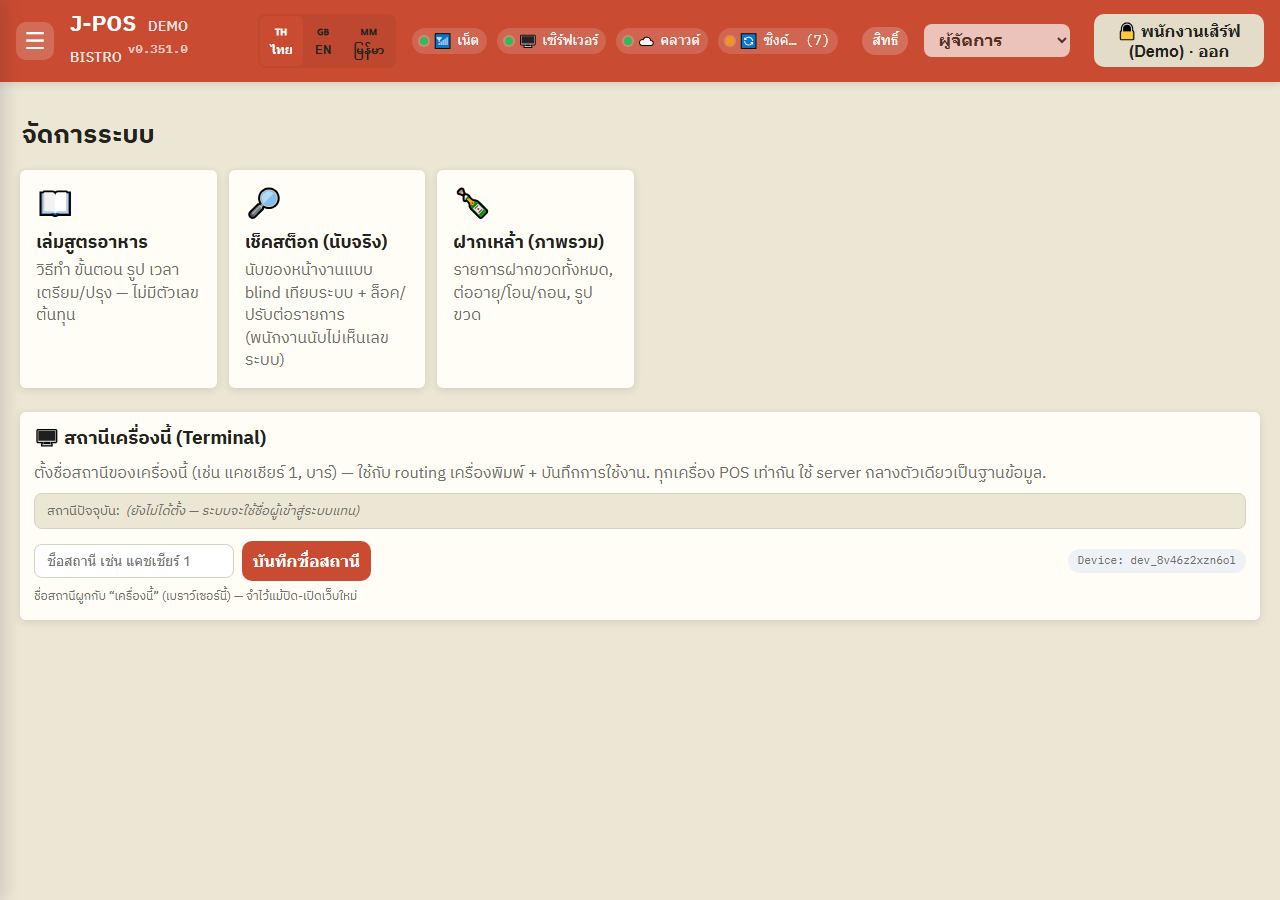
An extra confusing layer (visible in this step's screenshot): the role name shown top-right (the dropdown next to “Permissions”) re-fetches live from /api/me on every page load, so it can already show the new role (e.g. “Manager”) — while the login button right next to it still shows the old staff name, and the menus/cards on the page are still fully gated by the old role. All 3 of these can genuinely disagree at the same time until that staff member logs out and back in.
Practical implication: until they log out, that staff member may be confused about why a newly granted button/menu still isn't showing (the role change is already real) — the fix is simply to have them log out and log back in right after their role changes.
Open full size
Common points of confusion
The “owner” role is permanently locked — not even the owner can change it
The owner role always holds the “*” (everything) permission — every row in the matrix renders that column as a locked checkmark with no clickable checkbox. The owner's permissions can never be removed from this table, no matter who clicks it.
There's no button to create a new role — only 5 fixed roles exist
This screen only lets you toggle permissions for the 5 existing roles (owner/manager/assistant manager/cashier/server) — there's no in-product way to add a new role. So “what does a new role start with?” has no answer in this build; every role that exists today is one that shipped with the system, and all you can adjust is which permissions each one currently holds.
Toggling a permission (checkbox) applies instantly — reassigning a staff member's role (dropdown) does not
These two behave differently: checking/unchecking a permission in the matrix applies to every staff member currently holding that role immediately (verified: visible on their very next data refresh, no logout needed). But changing which role a specific staff member holds (the dropdown on the staff tab) does not immediately update the screen of a staff member who's already logged in — they need to log out and back in before their UI reflects the new role, even though the server already enforces the new role's permissions right away.
A “+PIN” tag in the matrix ≠ every one of them actually pops a PIN prompt today
The +PIN tag just means the system's registry flags that permission as “sensitive”. Confirmed to genuinely prompt for a PIN at the point of use: order.void_item, order.after_timelock, bill.discount, bill.refund, payment.confirm_no_slip, cash.paid_out, stock.reconcile, points.adjust. permission.manage, system.admin, settings.manage, purchase.edit, and audit.view also carry the +PIN tag, but today are enforced purely by a normal role/permission check — there's no separate PIN prompt for them yet at the point of use.
Multiple permissions listed for one page doesn't mean you need all of them — some pages open with “any one of these is enough”
The members page, for example, opens if the role holds any one of these 4: settings.manage, member.manage, coupon.manage, points.adjust (not all required). The shift/shift-history pages work the same way with payment.confirm or settings.manage — either is enough.
Some permissions gate a whole page, others only gate one tab/button inside a shared page
cost.view is the clearest example — it doesn't gate the whole menu-edit page (that page is gated by menu.edit); it only gates whether the “BOM cost” tab inside that same page is visible. That's different from inventory.manage or menu.edit, which do gate their whole pages.
Several permissions are granted to no role at all by default — an entirely blank row (except the owner) is expected, not broken
permission.manage, system.admin, coupon.manage, points.adjust, purchase.edit, and audit.view aren't granted to any role when a shop is freshly set up (aside from the owner, who already has everything via “*”). Seeing those rows entirely blank except for the owner's column is normal — you have to explicitly check them on for any other role you want to hand them to.
The default matrix described in this document is only the fresh-install baseline, not necessarily today's real values for a shop that's been running a while
A shop that's been live for a while may have had certain permissions (e.g. reports.view, bottle.keep, member.manage) auto-granted to some roles through a system update, without that showing up in the fresh-install defaults. A real example visible in step 1's screenshot: the cashier role already holds member.manage even though the fresh-install baseline doesn't grant it. Always trust the live matrix on the “Staff” page's “Permissions” tab over this document for what a role holds right now.